After going through the previous steps in this tutorial, you should end up with a good-looking, minimal website for your iOS app ready to be deployed to production and shared with your audience.
Make sure to check other guides in this documentation to customize the website further, for example:
- Color themes
- Waitlist page
- Custom card grids
- Release notes blog
- Open graph image generator
- Web Analytics
Now let’s go through the final steps to build and deploy the website.
Build
AppView website is built into static files without any backend. This ensures the best SEO, performance, and portability.
To build the website, stop the dev server if it’s running in your terminal and run the build command:
npm run buildThis will render all pages into static HTML files and put them into the out/
folder.
Deploy
For this tutorial, you’ll use Vercel to deploy the website. It’s the fastest option because AppView uses Next.js as its framework, and Vercel, as the company behind Next.js, integrates seamlessly with it. Plus, it’s completely free if you don’t need advanced features.
That said, because AppView exports into static files, you can deploy it to any platform you choose, including GitHub Pages, Netlify, Cloudflare Pages, or any traditional web hosting service.
Push to GitHub
In order for Vercel to deploy your website, you’ll need to push it to one of the Git providers: GitHub, GitLab, or Bitbucket. This tutorial assumes you’re using GitHub.
Create a new repository on GitHub and copy its SSH URL.
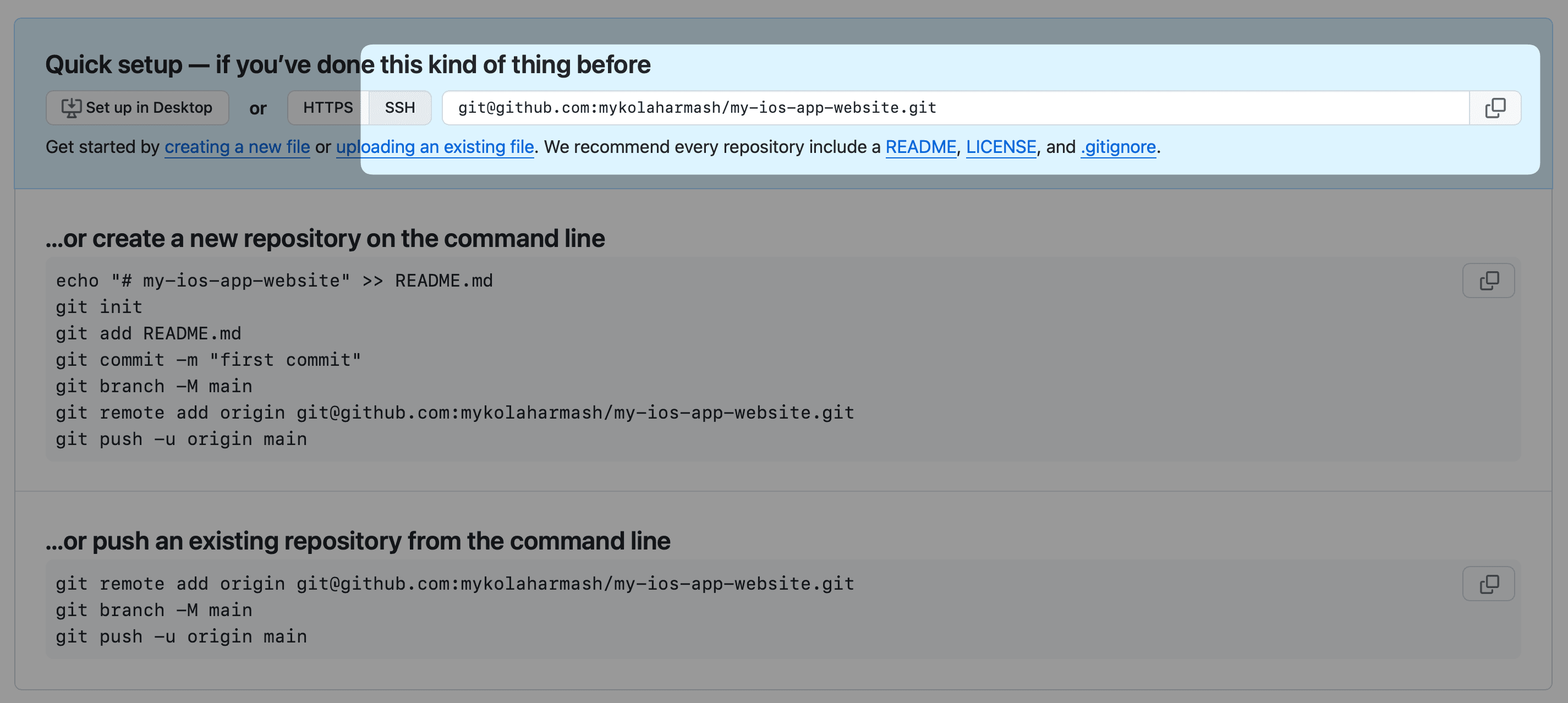
Change remote URL
Because you cloned the AppView template from a GitHub repo, it uses that repo as the default remote. Run this command in your terminal to change the remote to your new repository:
git remote set-url origin <SSH_URL_OF_YOUR_REPO>Commit and push
git add .
git commit -m "Initial"
git push
Create Vercel project
Create a Vercel account if you don’t have one already at vercel.com . Then go to your dashboard and create a new project.
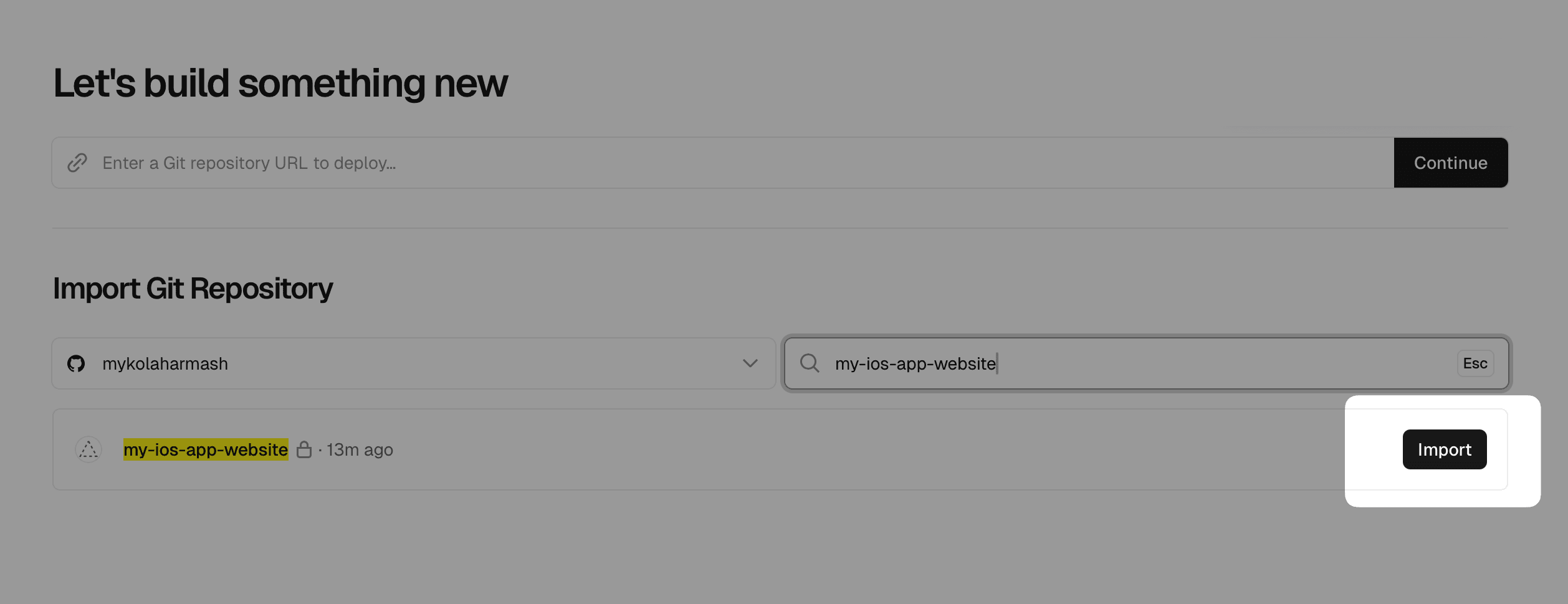
Connect your GitHub account, search for the repository you’ve created for your website and click “Import”.
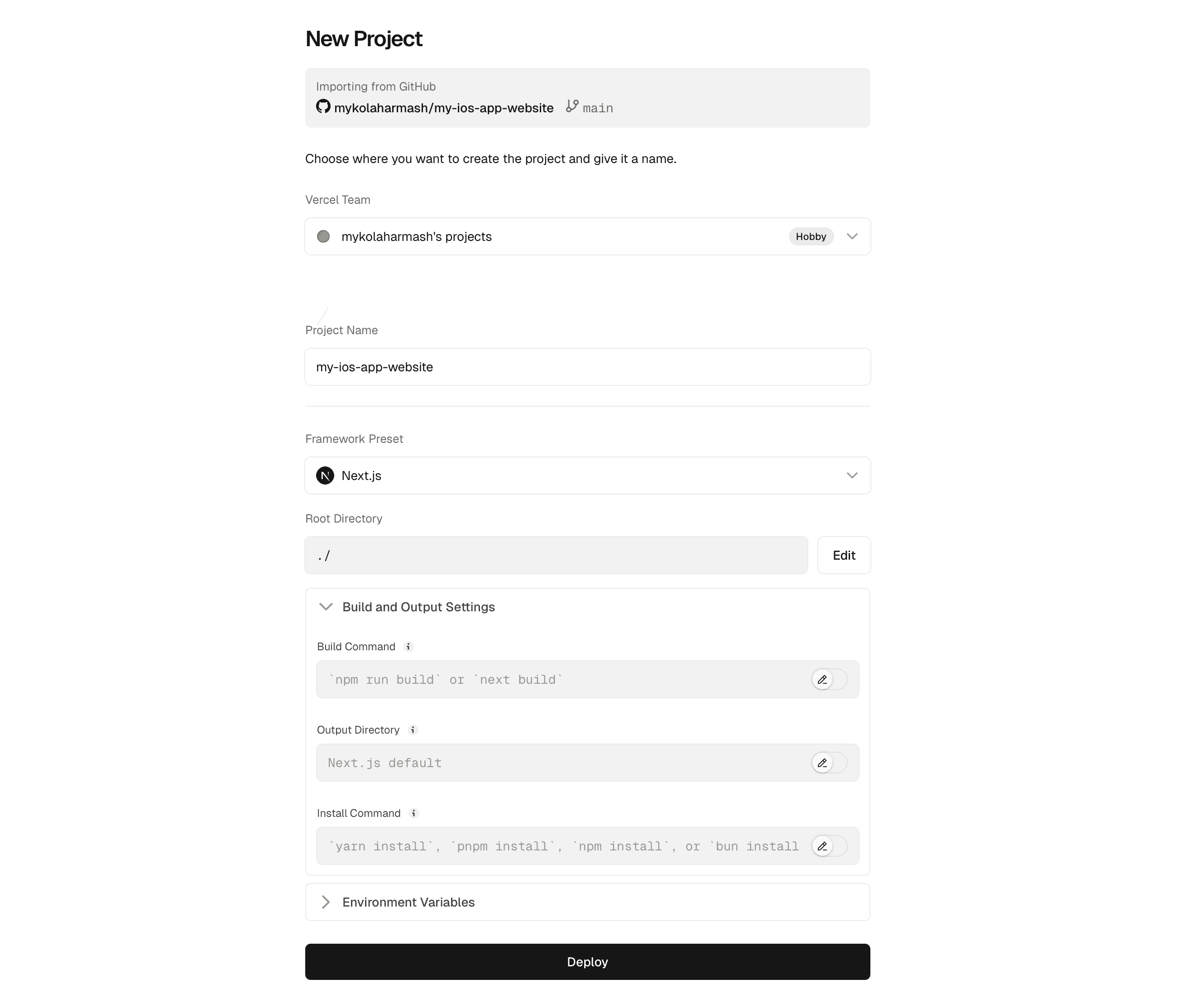
On the next screen, make sure that the framework preset is set to “Next.js”, leave all other options as is and click “Deploy”.
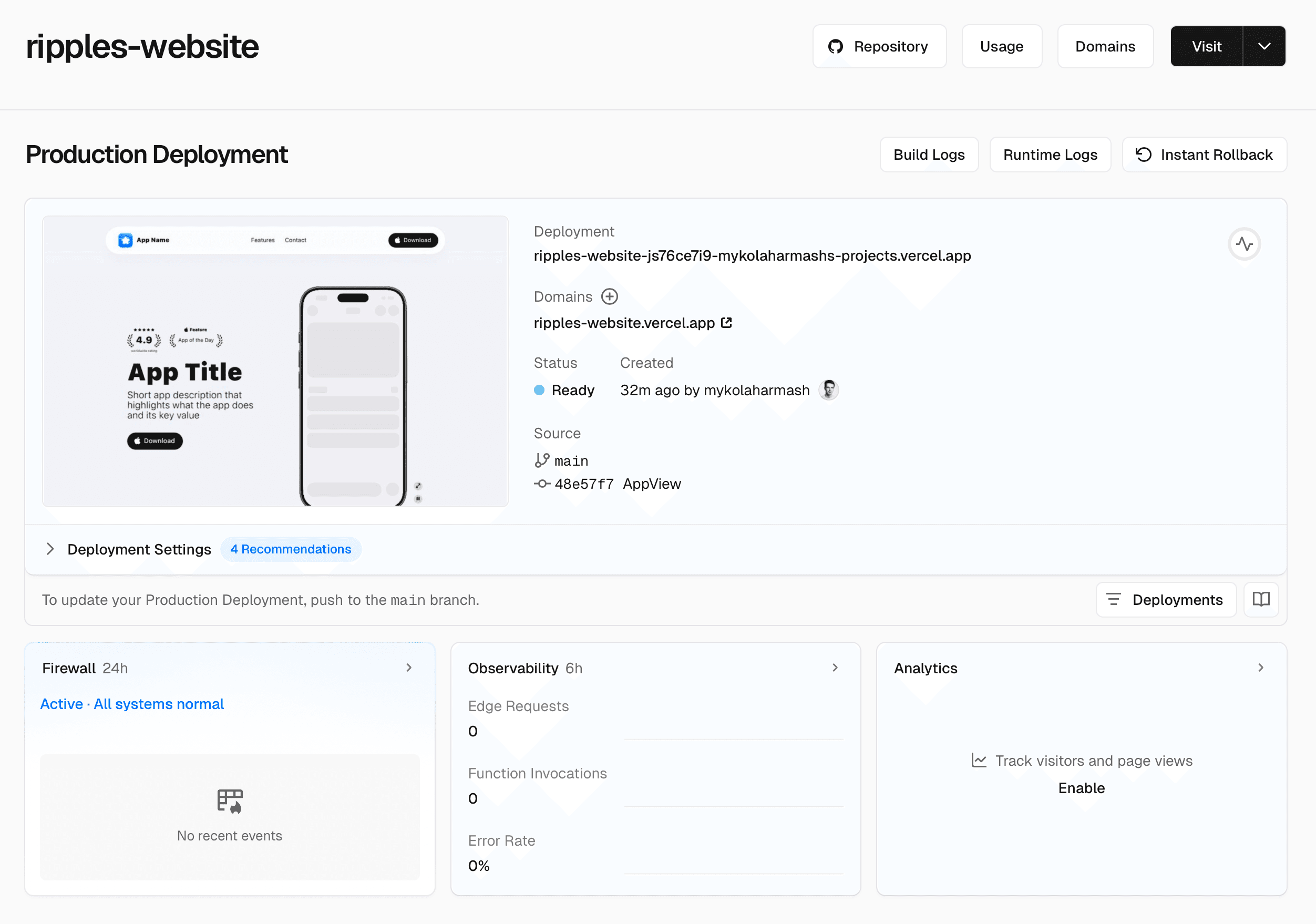
Vercel will fetch the code from the repository, build the website and deploy it. In a minute you’ll see a preview of your new website and a URL where it’s hosted.
Make sure to check Vercel’s documentation in case you have any issues or need more custom setup.
Add custom domain
Follow this guide from Vercel to connect your custom domain name to the deployed project.
Congrats! Your website is now live and I hope you like the result. I’d appreciate it if you reach out and share the link with me; my DMs are open as well as the email.