This tutorial will guide you through the most important steps to run AppView and make the most important customizations. By the end, you will have an app website ready to be deployed to production, which is also covered as the last step.
The tutorial covers the basics and gets you up and running quickly, while Guides and References cover more specific topics and document all available customizations for the built-in components.
Installing and running locally
Once you have access to the AppView repo, clone it locally:
git clone [email protected]:overthink-software/app-view.git my-app-websiteThen, navigate to the project directory and install the dependencies:
cd my-app-website
npm install
Then run the dev server:
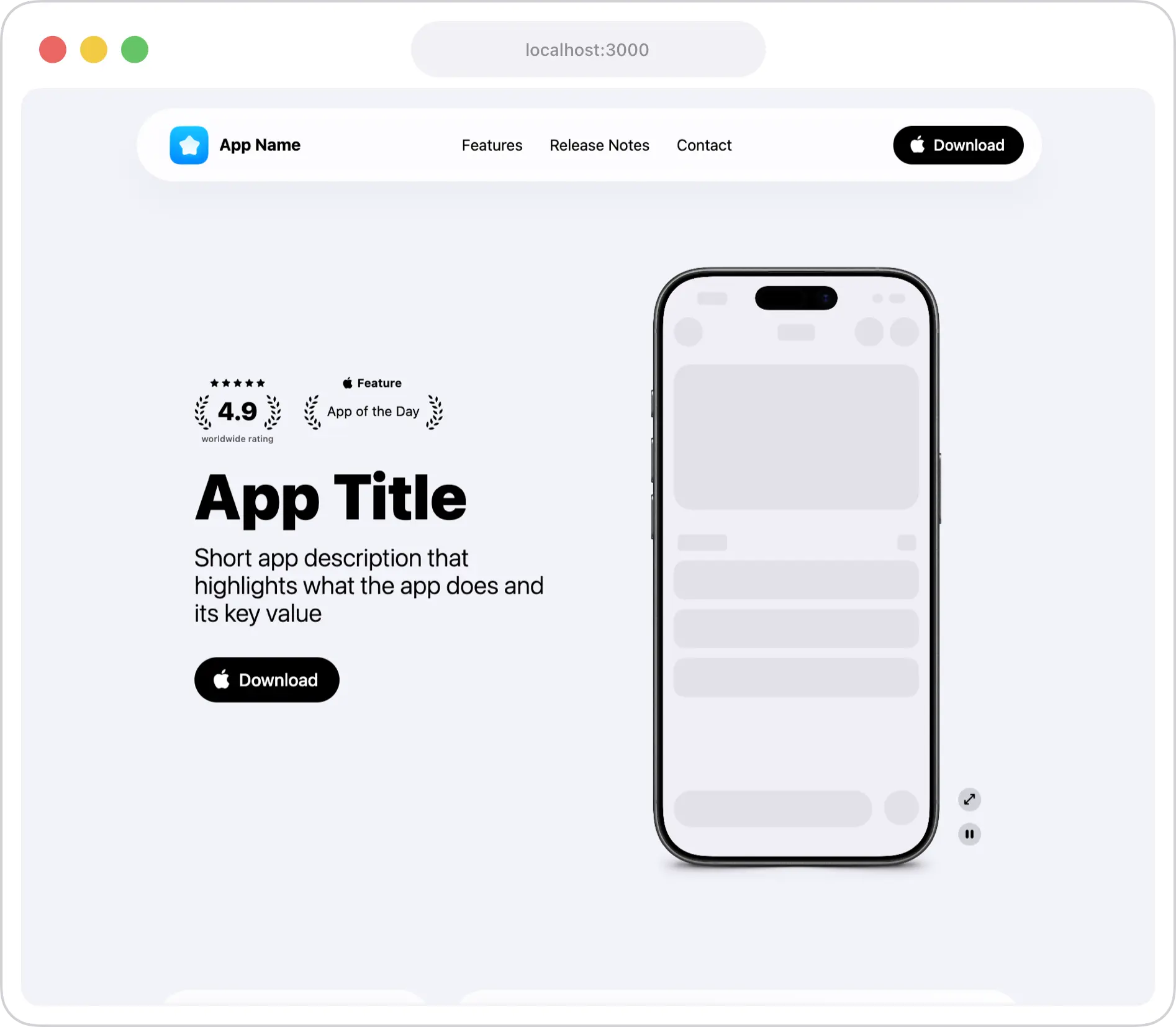
npm run devWhen you open http://localhost:3000 in the browser, you’ll see the default AppView template. From here you can start customizing it.
Most important files and folders
AppView is a Next.js project. Any guide you find about Next.js is applicable here as well. That said, you don’t need to know about Next.js or React. AppView is intentionally opinionated and designed to save you time to get back for building your app, everything is customizable by changing constants or component properties, similar to SwiftUI.
Here are the most important files and folders that you’ll need to touch throughout this tutorial:
| File/Folder | Description |
|---|---|
app/(main)/layout.tsx | This file holds metadata and components that are shared across all pages of the website. This includes the top navbar, footer and global metadata like website’s title and description picked up by search engines and AI bots |
app/(main)/page.tsx | This is the main homepage component. It includes all sections of the homepage like hero section, features grid and testimonials. This is the file you’ll spend most of the time in. |
src/constants.ts | This file lets you modify global constants like your app’s App Store ID or the website’s color theme. |
public/ | This folder holds all static assets like app screenshots, screen recordings and your app icon. |
Next you’ll customize some important web metadata.