The top navigation bar is composed of your app icon and name on the left, the main action on the right, and a few links in the middle.
It’s rendered by the <Navbar> component inside the app/(main)/layout.tsx
file.

<Navbar
  icon={<AppIcon src="app_icon.png" />}
  appName="App Name"
  links={[
    { label: "Features", href: "#features" },
    { label: "Contact", href: "mailto:[email protected]" },
  ]}
  action={<DownloadActionButton />}
/>
Using your app icon
The icon property of the <Navbar> component takes an <AppIcon> component
with src property that should point to your app icon file placed inside the
public/ folder.
Prepare your app icon
If you’re using Icon Composer, open your icon there, go to File > Export...
(⌘ + Shift + E) and export using a size of 76pt. This resolution is more than
enough for the navbar.
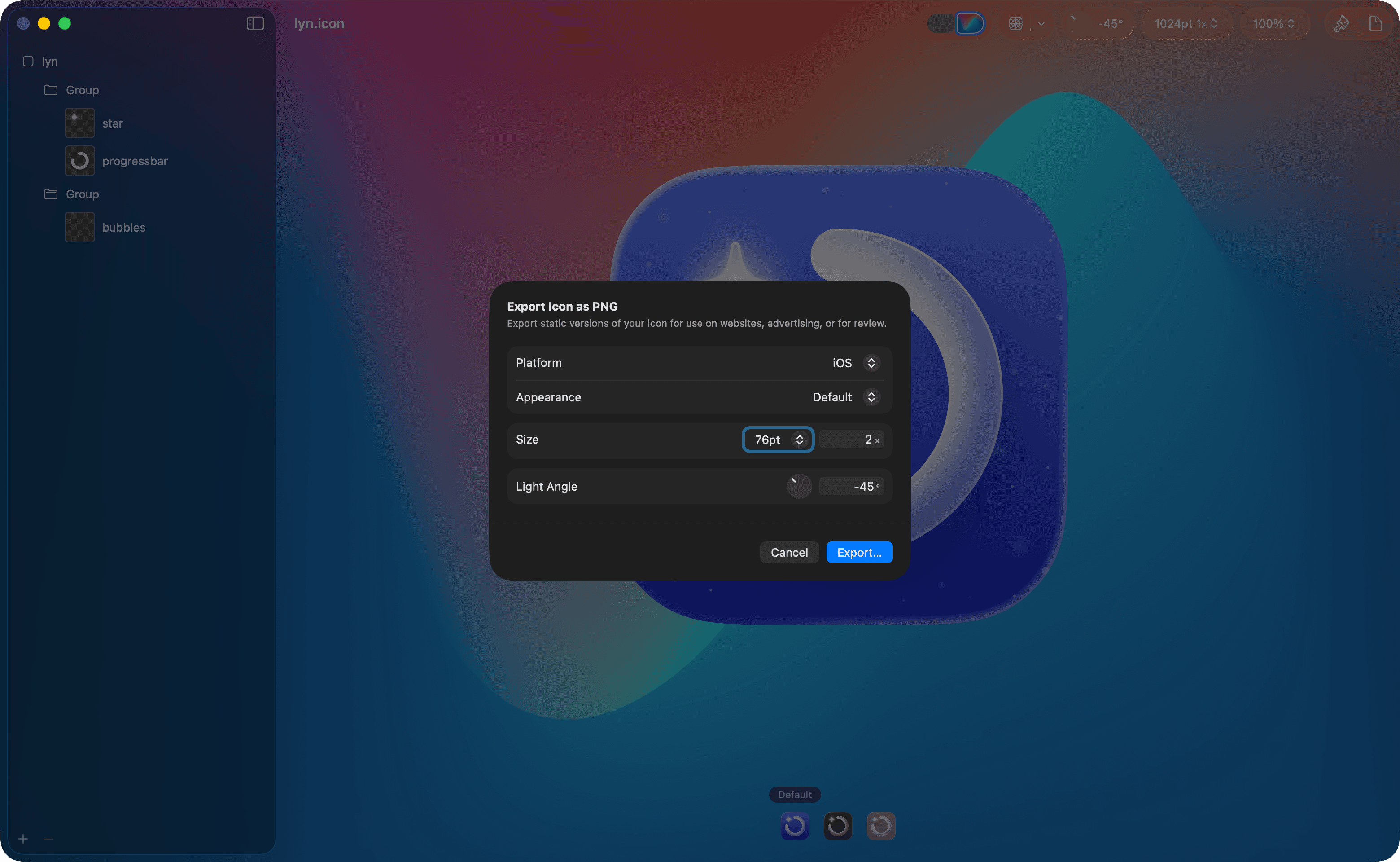
If you’re not using Icon Composer, just take a PNG of your icon from where you keep it and make it a reasonable size (around 80x80 pixels would be enough).
Add the icon to the project
Put the exported icon inside the public/ folder, naming it, for example,
app_icon.png.
Update the <Navbar> component
Open the app/(main)/layout.tsx file and update the icon property of the
<Navbar> component to point to your app icon file.
<Navbar
  icon={<AppIcon src="/app_icon.png" />}
  ...
/>
Apply squircle mask (optional)
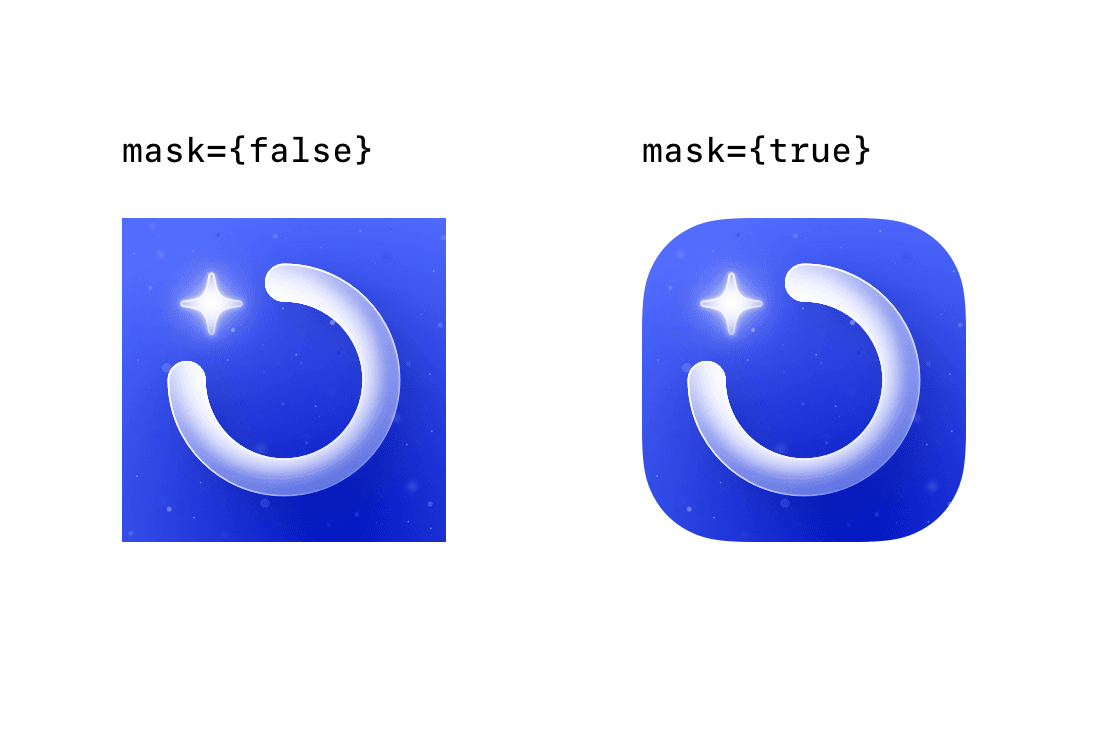
If your icon image isn’t already squircle-shaped, <AppIcon> can apply a
squircle mask automatically by adding a mask={true} property.
<Navbar
  icon={
    <AppIcon
      src="app_icon.png"
      mask={true}
    />
  }
  ...
/>
Check the <AppIcon> component reference to see other available options.
Configuring links
For this tutorial we’ll keep the two default links in the navbar: “Features” and “Contact”. But feel free to modify this list as needed.
<Navbar
  ...
  links={[
    { label: "Features", href: "#features" },
    { label: "Contact", href: "mailto:[email protected]" }
  ]}
  ...
/>
Each link has a label and an href property. href can have an external or
internal URL, mailto: links or anchors like #features.
Anchor links reference sections on the page and smoothly scroll to them when the
user clicks the link. In order to add an anchor to a particular section, add a
navigationAnchor property to the corresponding <Section> component inside
the app/(main)/page.tsx file.
<Section navigationAnchor="features">...</Section>Now add your email to the href property of the “Contact” link.
Configuring the action
The action property of the <Navbar> holds the main action you want the user
to perform on the website. In most cases it will lead them to your app in the
App Store.
<DownloadActionButton> does this out of the box by reading your App Store
app ID from src/constants.ts that you’ve set up in the
Customizing metadata step of this
tutorial.
There is also an <ActionButton> component
that you can use to create custom actions, but for this tutorial, we’ll keep the
default download button.