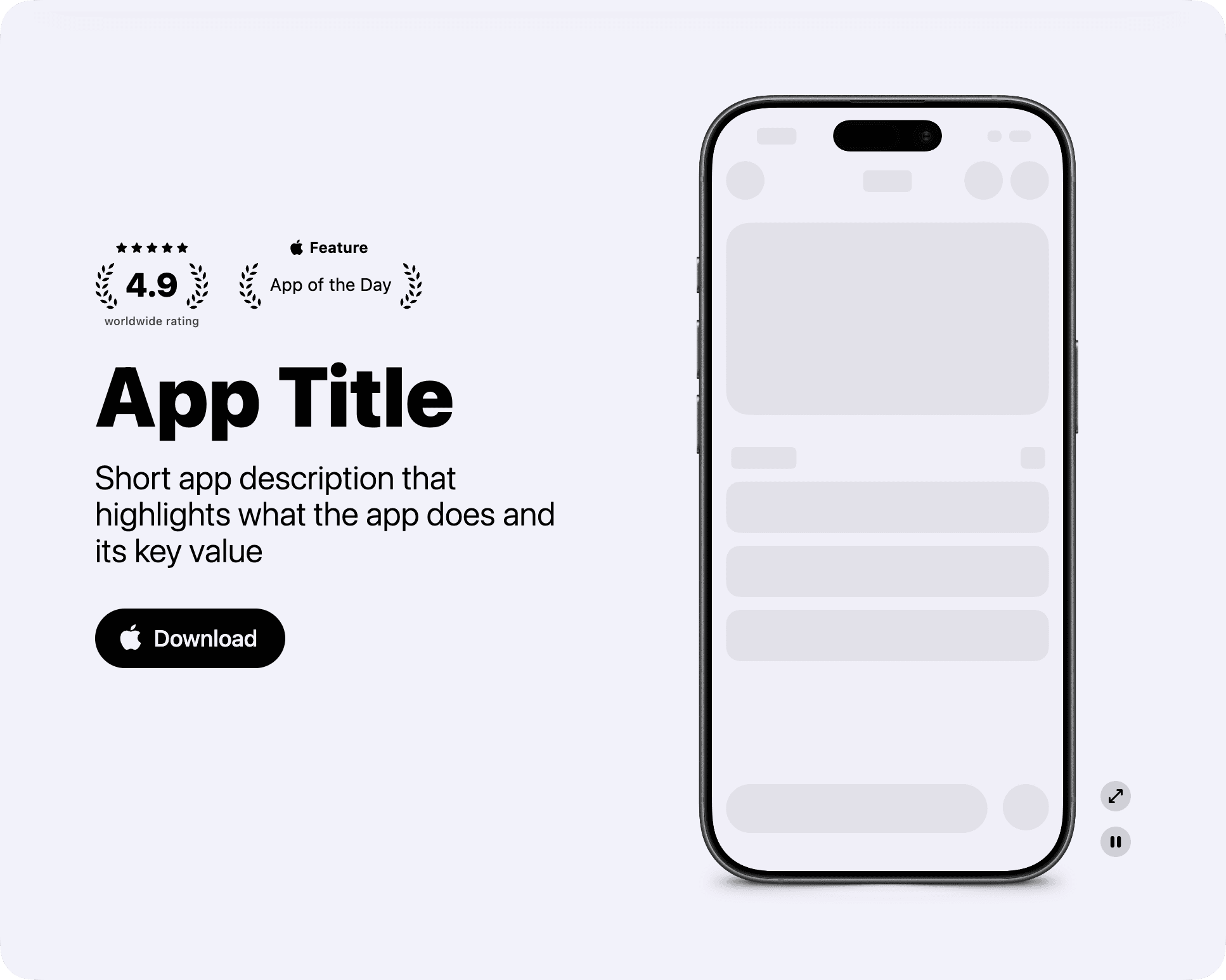
See Hero section tutorial on more details on
customizing the <Hero> component.
<Hero
  title="App Title"
  subtitle="Short app description that highlights what the app does and its key value"
  media={
    <Hero.Image
      src="/app_view/screenshot_placeholder.png"
      bezel="iPhone 17 Black"
      alt=""
    />
  }
  badges={
    <>
      <RatingLaurelsBadge
        showStars={true}
        rating={4.9}
        caption="worldwide rating"
      />
      <AppleFeatureLaurelsBadge featureName="App of the Day" />
    </>
  }
  action={<DownloadActionButton size="medium" />}
/>
<Hero> Properties
| Property | Value | Description |
|---|---|---|
title | string | Main heading for the hero section. |
subtitle | string | Supporting text displayed under the title. |
titleFontStyle | sanscursivewhimsical | Font style for the title. Defaults to |
badges | Component | Optional badges rendered above the title. There are a few built-in badge components:
|
media | <Hero.Image><Hero.Video> | Media content rendered alongside the text info. See properties for both
|
action | Component | Optional call to action rendered below the subtitle. |
<Hero.Image> Properties
| Property | Value | Description |
|---|---|---|
src | string | URL of the image to display. |
srcset | { src: string; theme: 'dark' | 'light' }[] | Alternative image sources for dark or light mode. |
alt | string | Alternative text for the image, used for accessibility. |
bezel | iPhone 17 BlackiPhone 17 WhiteiPhone 17 LavenderiPhone 17 SageiPhone 17 Mist BlueiPhone 17 Pro Cosmic OrangeiPhone 17 Pro Deep BlueiPhone 17 Pro SilveriPhone Air Sky BlueiPhone Air Light GoldiPhone Air Cloud WhiteiPhone Air Space BlackiPhone 18 Pro BlackiPhone 18 Pro BurgundyiPhone 18 Pro GlacieriPhone 18 Pro Silver | Specifies the iPhone model bezel to wrap around the screenshot image. |
<Hero.Video> Properties
Screen recordings that iOS produces usually have a large file size. It’s a good idea to convert them into a more web-friendly format like MP4 or WebM. Here is an example ffmpeg command to convert a MOV file into WebM:
ffmpeg -i input.mov -c:v libvpx-vp9 -crf 20 -b:v 0 -an output.webm| Property | Value | Description |
|---|---|---|
src | string | URL of the video to display. |
srcset | { src: string; theme: 'dark' | 'light' }[] | Alternative video sources for dark or light mode. |
alt | string | Optional label for the video canvas, used for accessibility. |
bezel | iPhone 17 BlackiPhone 17 WhiteiPhone 17 LavenderiPhone 17 SageiPhone 17 Mist BlueiPhone 17 Pro Cosmic OrangeiPhone 17 Pro Deep BlueiPhone 17 Pro SilveriPhone Air Sky BlueiPhone Air Light GoldiPhone Air Cloud WhiteiPhone Air Space BlackiPhone 18 Pro BlackiPhone 18 Pro BurgundyiPhone 18 Pro GlacieriPhone 18 Pro Silver | Specifies the iPhone model bezel to wrap around the screenshot video. |