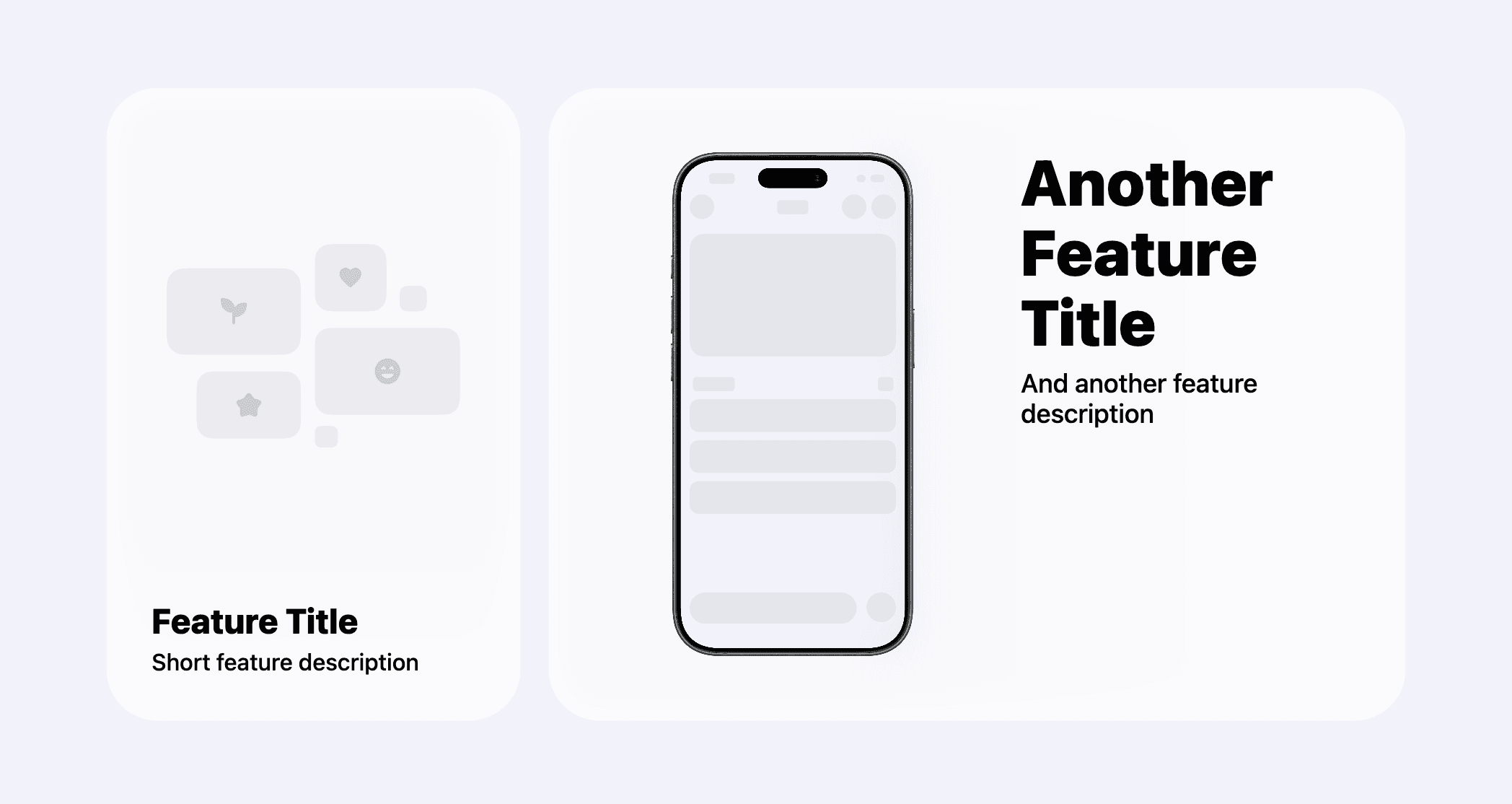
The <CardGrid.StackedCard> component is composed of two sections: one has a
title and description and the other holds media content like an image or video.
It automatically adjusts its layout and element sizes depending on the available width. The sections can be arranged either vertically or horizontally.
<CardGrid.StackedCard
  maxWidth="half"
  title="..."
  description="..."
  media={
    <CardGrid.StackedCard.Image
      src="/screenshot.png"
      bezel="iPhone 17 Black"
      alt=""
    />
  }
  layoutDirection="forward"
  textAlignment="leading"
/>
Layout direction
The layoutDirection property controls the arrangement of the text and media
sections within the card. It accepts two values:
forward | Places the media at the top when arranged vertically, or on the left side when arranged horizontally. |
reverse | Places the media at the bottom when arranged vertically, or on the right side when arranged horizontally. |
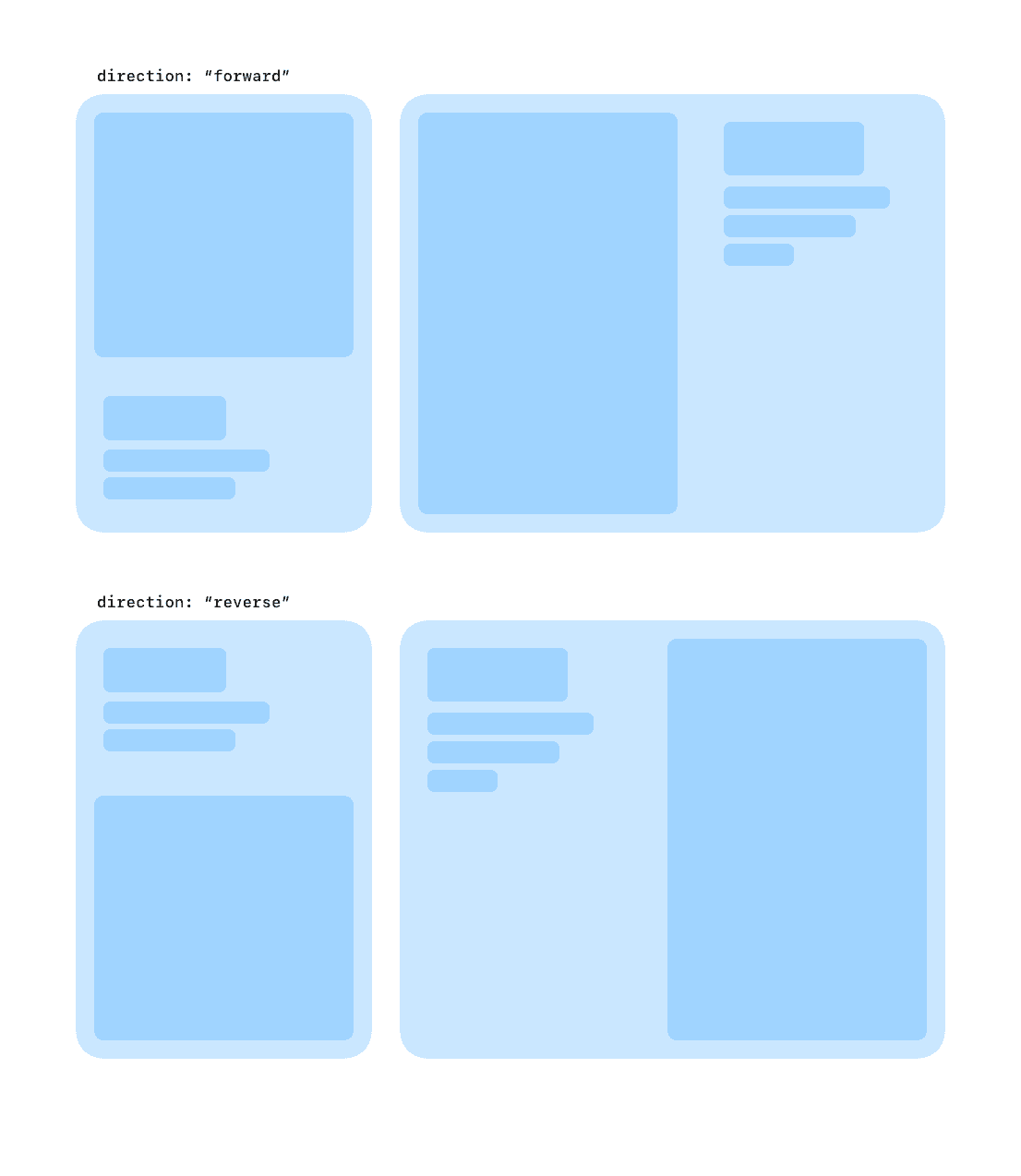
Changing the layout direction from card to card is a good way to create visual variety in a card grid.
Text alignment
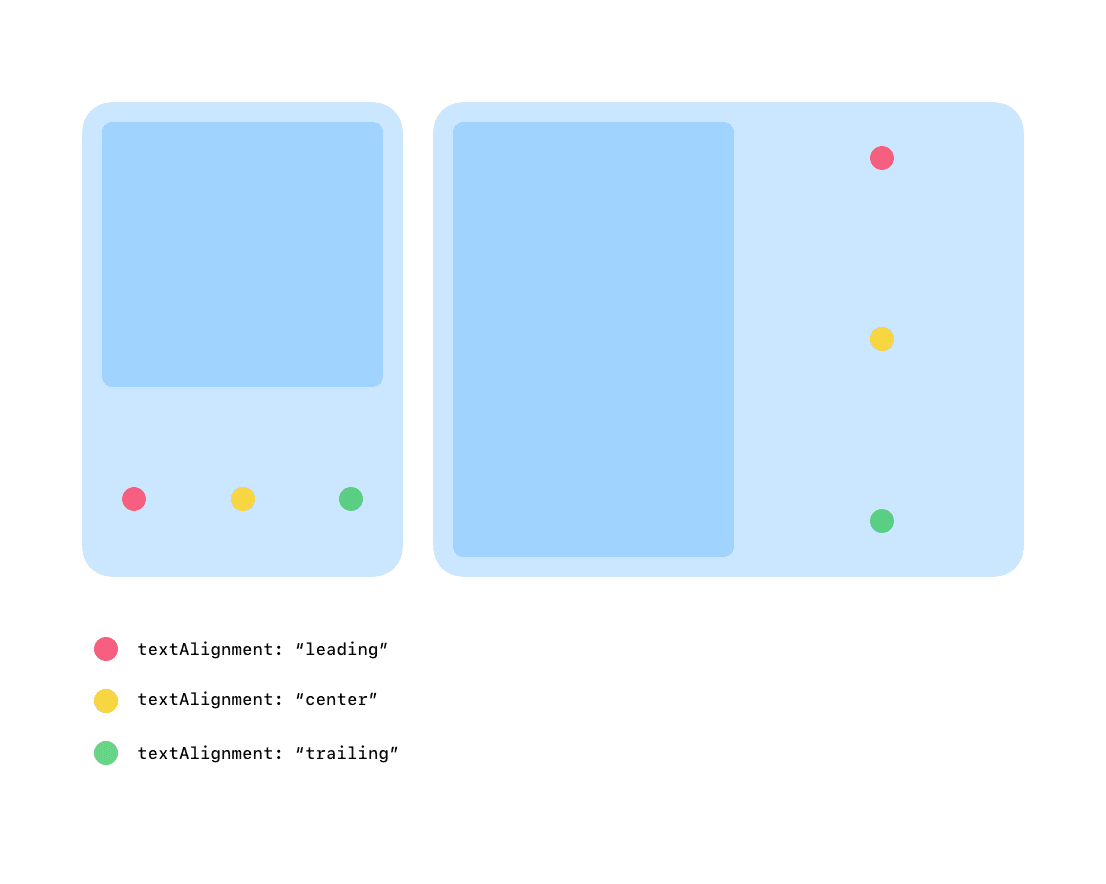
The textAlignment property controls the alignment of the title and description
within the text section. It accepts three values:
leading | Aligns text to the top when sections are arranged horizontally and to the left when arranged vertically. |
center | Centers the text horizontally or vertically within a card depending on the section arrangement. |
trailing | Aligns text to the bottom when sections are arranged horizontally and to the right when arranged vertically. |
Title font styles
The titleFontStyle property allows you to customize the font style of the
title text. Besides the default sans value which uses the system font (SF Pro
on macOS and iOS), it also accepts the following values:
cursive | Applies a font style resembling cursive handwriting. Uses Dancing Script font by default. |
whimsical | Applies a playful font style to the title. Uses Caveat font by default. |
rounded | Uses the system rounded font. SF Pro Rounded on macOS and iOS. |
mono | Uses the system monospaced font. SF Pro Mono on macOS and iOS. |
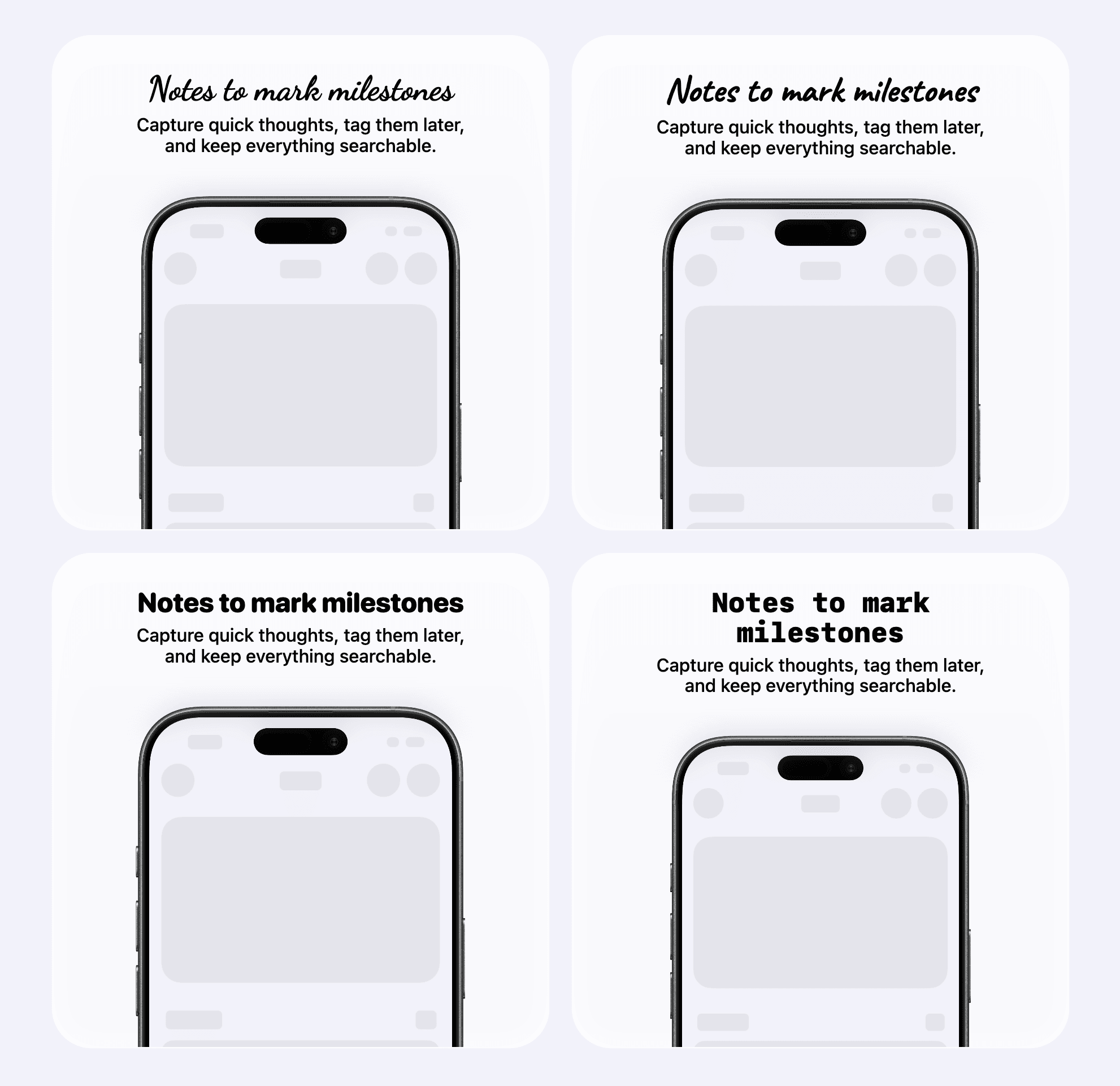
Using one of the alternative font styles on a couple of cards in a grid adds a
great visual treat and breaks the monotony. Don’t go overboard though, stick to
the default sans style for most cards and use an alternative when it makes
sense in the context of the card’s content.
Screenshots and screen recordings
<CardGrid.StackedCard> has two sub-components to display media content:
<CardGrid.StackedCard.Image><CardGrid.StackedCard.Video>
iPhone bezels
You can use any images or videos to display in the card, but most often you’ll use screenshots and screen recordings of your app either from the Simulator or a physical device.
For this use case, both media sub-components support device bezels to automatically wrap your screenshots and screen recordings with an iPhone frame. AppView will apply a proper mask to your media according to the selected iPhone model, so you don’t need to do any additional cropping or rounding.
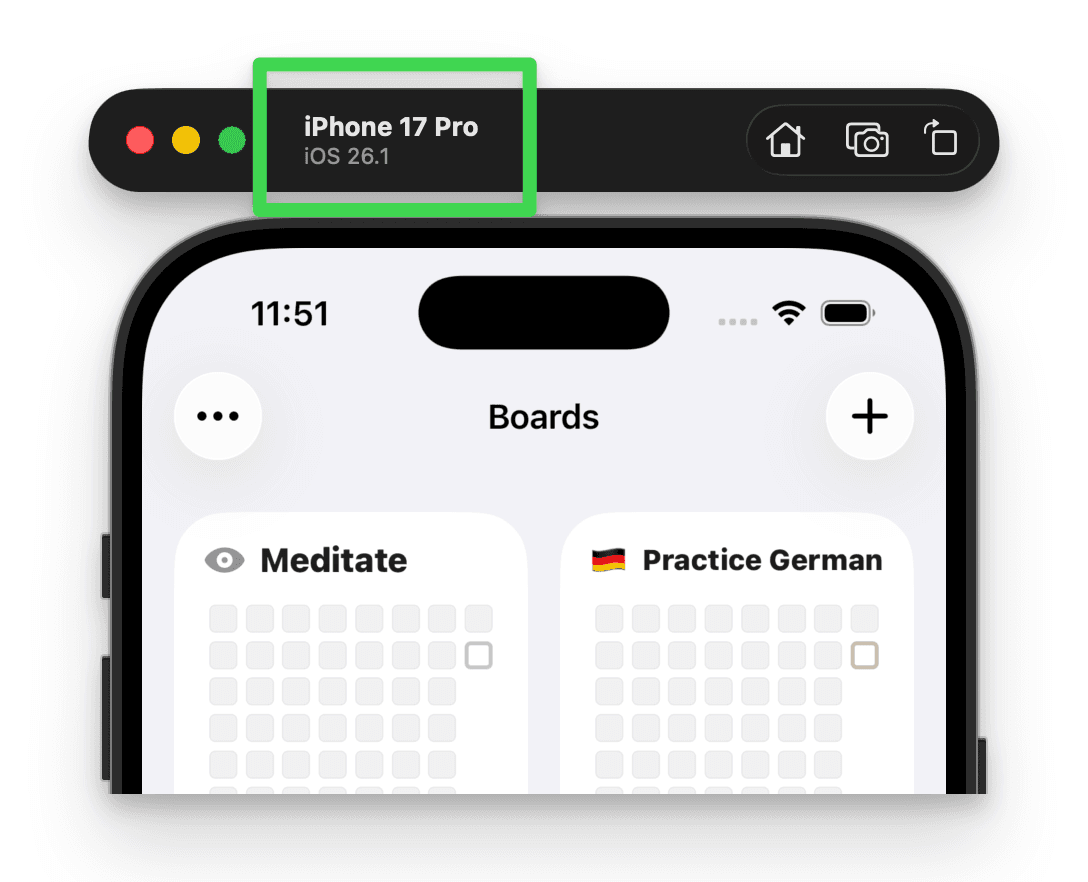
The only requirement is to choose the same iPhone model for the bezel as the model you used to capture the screenshot or screen recording either on Simulator or a device. This way the media will fit perfectly without any distortions due to screen size mismatch.
| |
Bezel cropping
When using iPhone bezel with a screenshot or screen recording, you have an option to crop it either from the top or bottom edge with an adjustable crop ratio.
<CardGrid.StackedCard.Image
  src="/screenshot.png"
  bezel="iPhone 17 Black"
  bezelCrop={{ edge: "top", croppedRatio: 0.5 }}
  alt=""
/>
This is useful when you want to focus attention on a specific part of the UI, plus it makes the grid look more dynamic when top and bottom crops are present on different cards.
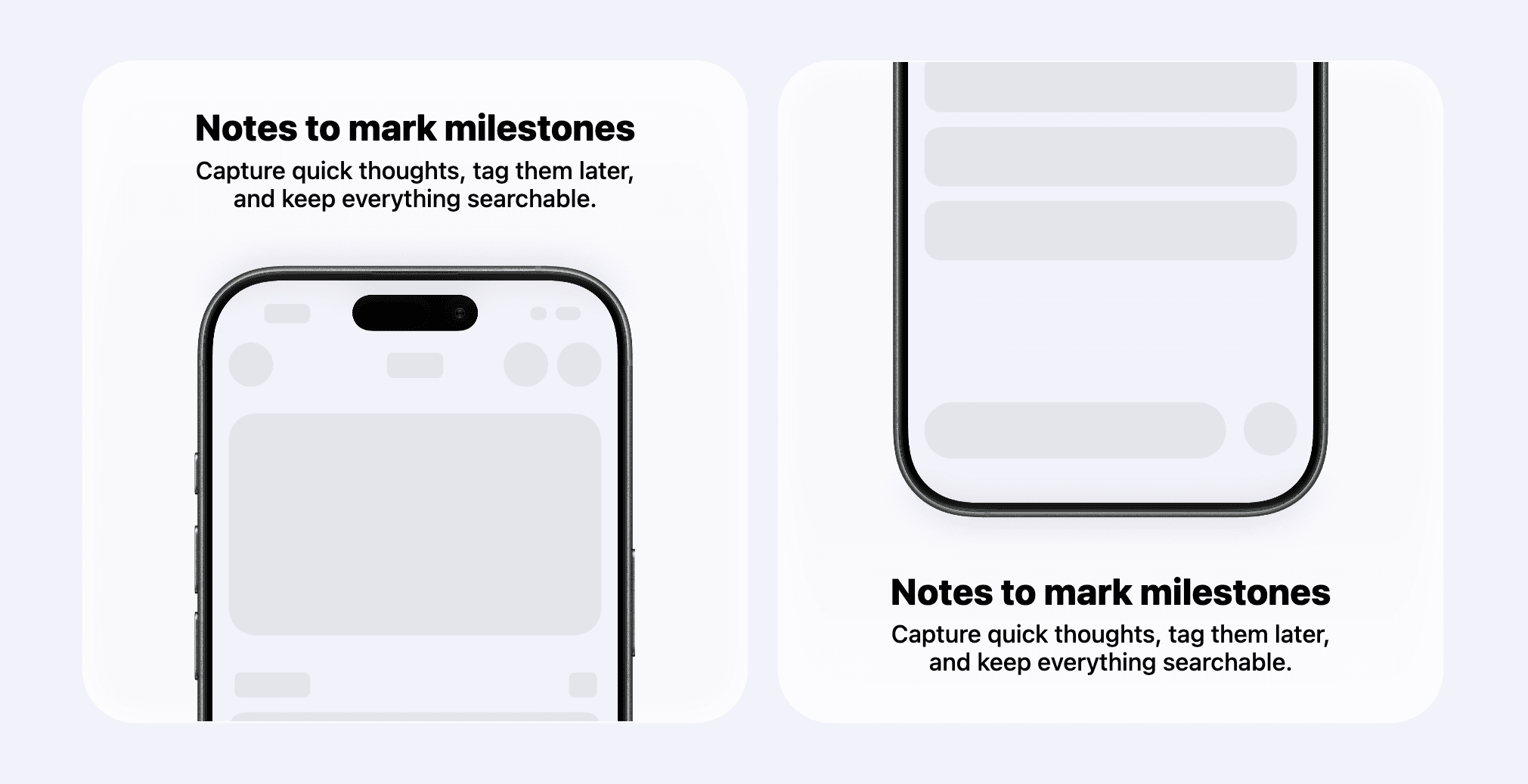
It looks best when the cropped side is on the edge of the card, so make sure to
combine bezelCrop with appropriate layoutDirection to achieve the best
result.
bezelCrop works with both images and videos. It’s an object that has two
properties:
edge | Specifies which edge to crop from. Accepts two values: |
croppedRatio | A number between |
Alternative media for dark and light modes
When using <CardGrid.StackedCard.Image> and <CardGrid.StackedCard.Video>
components, you can provide separate media for dark and light modes. This is
useful, for example, when you want to show your app’s UI in dark mode when the
user is viewing your website also in dark mode.
<CardGrid.StackedCard.Image
  src="/screenshot_light.png"
  srcset={{ src: "/screenshot_dark.png", theme: "dark" }}
  bezel="iPhone 17 Black"
  alt=""
/><CardGrid.StackedCard.Video
src="/recording_light.mov"
srcset={{ src: "/recording_dark.mov", theme: "dark" }}
bezel="iPhone 17 Black"
alt=""
/>Properties
<CardGrid.StackedCard>
| Property | Value | Description |
|---|---|---|
maxWidth | thirdhalftwoThirdsfull | Defines the maximum width of the card within the grid. See Custom card grid layouts guide for details on card sizes and how they are placed in a grid layout. |
title | string | – |
description | string | – |
titleFontStyle | sanscursivewhimsicalroundedmono | Customizes the font style of the title text. See Title font styles section for details. |
layoutDirection | forwardreverse | Controls the arrangement of the text and media sections within the card. See Layout direction section for details. |
textAlignment | leadingcentertrailing | Controls the alignment of the title and description within the text section. See Text alignment section for details. |
media | <CardGrid.StackedCard.Image><CardGrid.StackedCard.Video> | See properties for media sub-components below. |
<CardGrid.StackedCard.Image>
| Property | Value | Description |
|---|---|---|
src | string | URL of the image to display. |
srcset | { src: string; theme: 'dark' | 'light' } | An object specifying an alternative image URL for dark or light mode. See Alternative media for dark and light modes section for details. |
alt | string | Alternative text for the image, used for accessibility. |
bezel | iPhone 17 BlackiPhone 17 WhiteiPhone 17 LavenderiPhone 17 SageiPhone 17 Mist BlueiPhone 17 Pro Cosmic OrangeiPhone 17 Pro Deep BlueiPhone 17 Pro SilveriPhone Air Sky BlueiPhone Air Light GoldiPhone Air Cloud WhiteiPhone Air Space BlackiPhone 18 Pro BlackiPhone 18 Pro BurgundyiPhone 18 Pro GlacieriPhone 18 Pro Silver | Specifies the iPhone model bezel to wrap around the screenshot image. See iPhone bezels section for details. |
bezelCrop | { edge: 'top' | 'bottom'; croppedRatio: number } | Specifies cropping options for the screenshot within the bezel. See Bezel cropping section for details. |
padded | boolean | Enables or disables padding around the image. |
<CardGrid.StackedCard.Video>
| Property | Value | Description |
|---|---|---|
src | string | URL of the video to display. |
srcset | { src: string; theme: 'dark' | 'light' } | An object specifying an alternative video URL for dark or light mode. See Alternative media for dark and light modes section for details. |
bezel | iPhone 17 BlackiPhone 17 WhiteiPhone 17 LavenderiPhone 17 SageiPhone 17 Mist BlueiPhone 17 Pro Cosmic OrangeiPhone 17 Pro Deep BlueiPhone 17 Pro SilveriPhone Air Sky BlueiPhone Air Light GoldiPhone Air Cloud WhiteiPhone Air Space BlackiPhone 18 Pro BlackiPhone 18 Pro BurgundyiPhone 18 Pro GlacieriPhone 18 Pro Silver | Specifies the iPhone model bezel to wrap around the video. See iPhone bezels section for details. |
bezelCrop | { edge: 'top' | 'bottom'; croppedRatio: number } | Specifies cropping options for the video within the bezel. See Bezel cropping section for details. |
padded | boolean | Enables or disables padding around the image. |