In case none of the grid templates work for your use case, this guide will give you all the information you need to build a custom layout.
Grid container
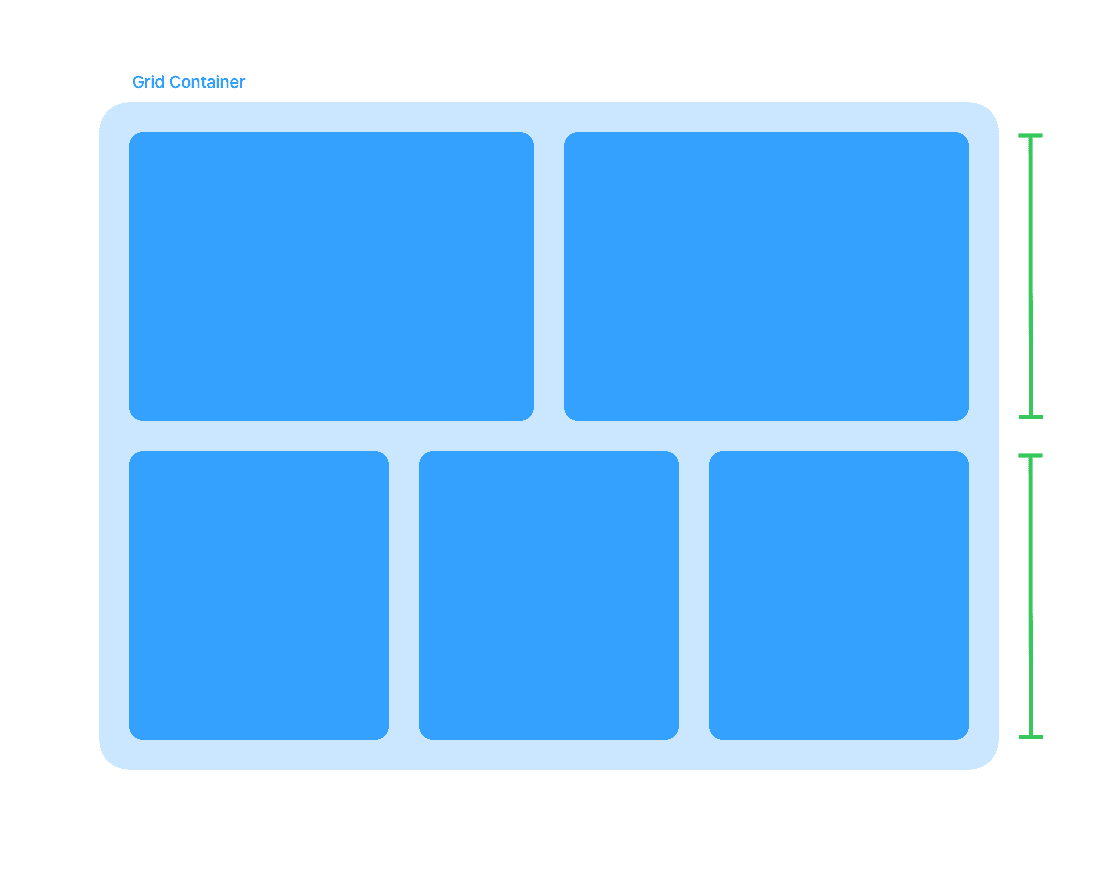
Every grid in AppView starts with the <CardGrid> container component, which
defines the row height.
<CardGrid rowHeight={438}>...</CardGrid>Within a single container, all cards will have the same height, but their width
can vary based on the maxWidth property defined for every individual card.
You can have multiple <CardGrid> containers on a single page, each with a
different row height to accommodate different types of cards.
<CardGrid rowHeight={438}>...</CardGrid>

<CardGrid rowHeight={200}>...</CardGrid>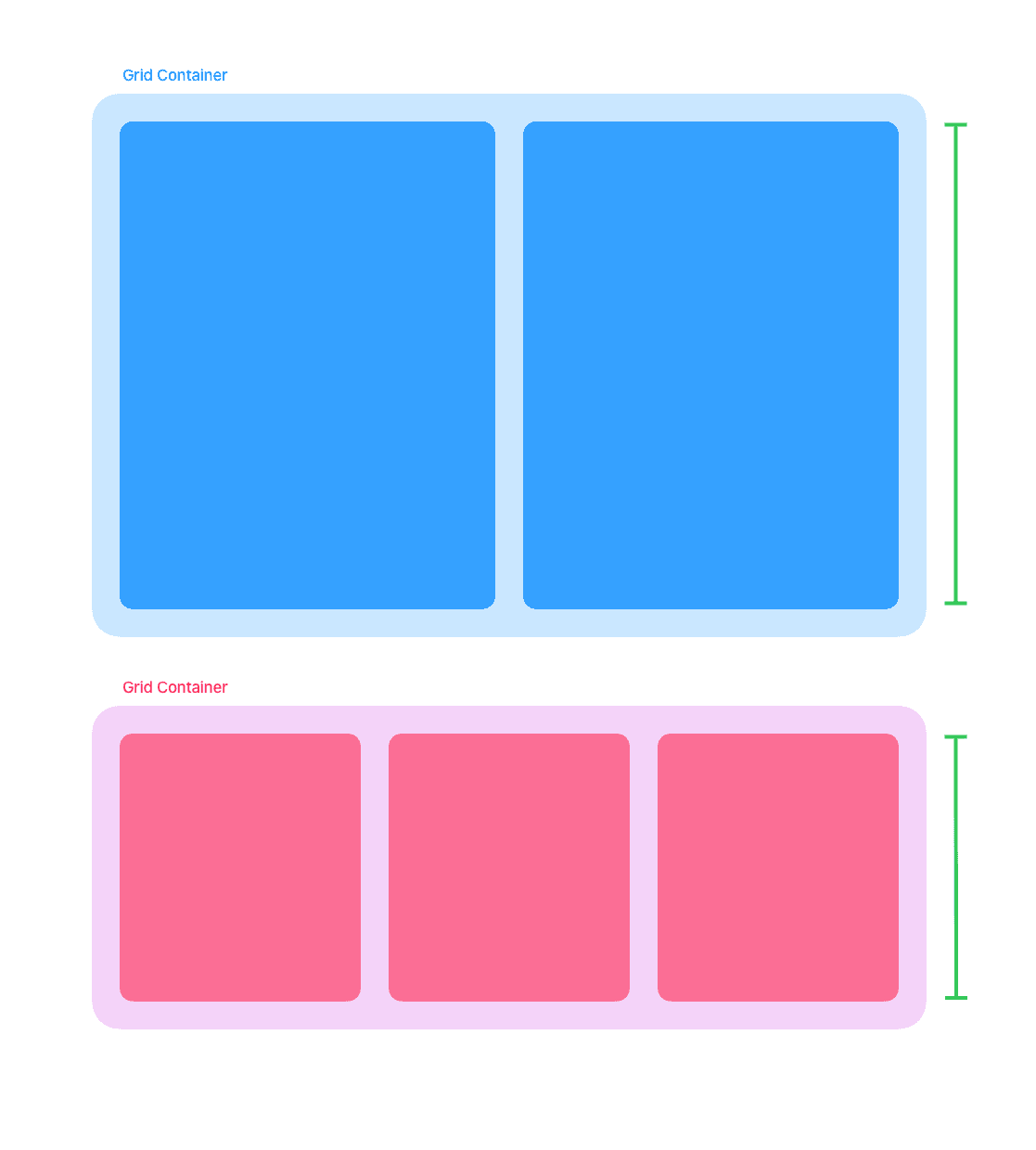
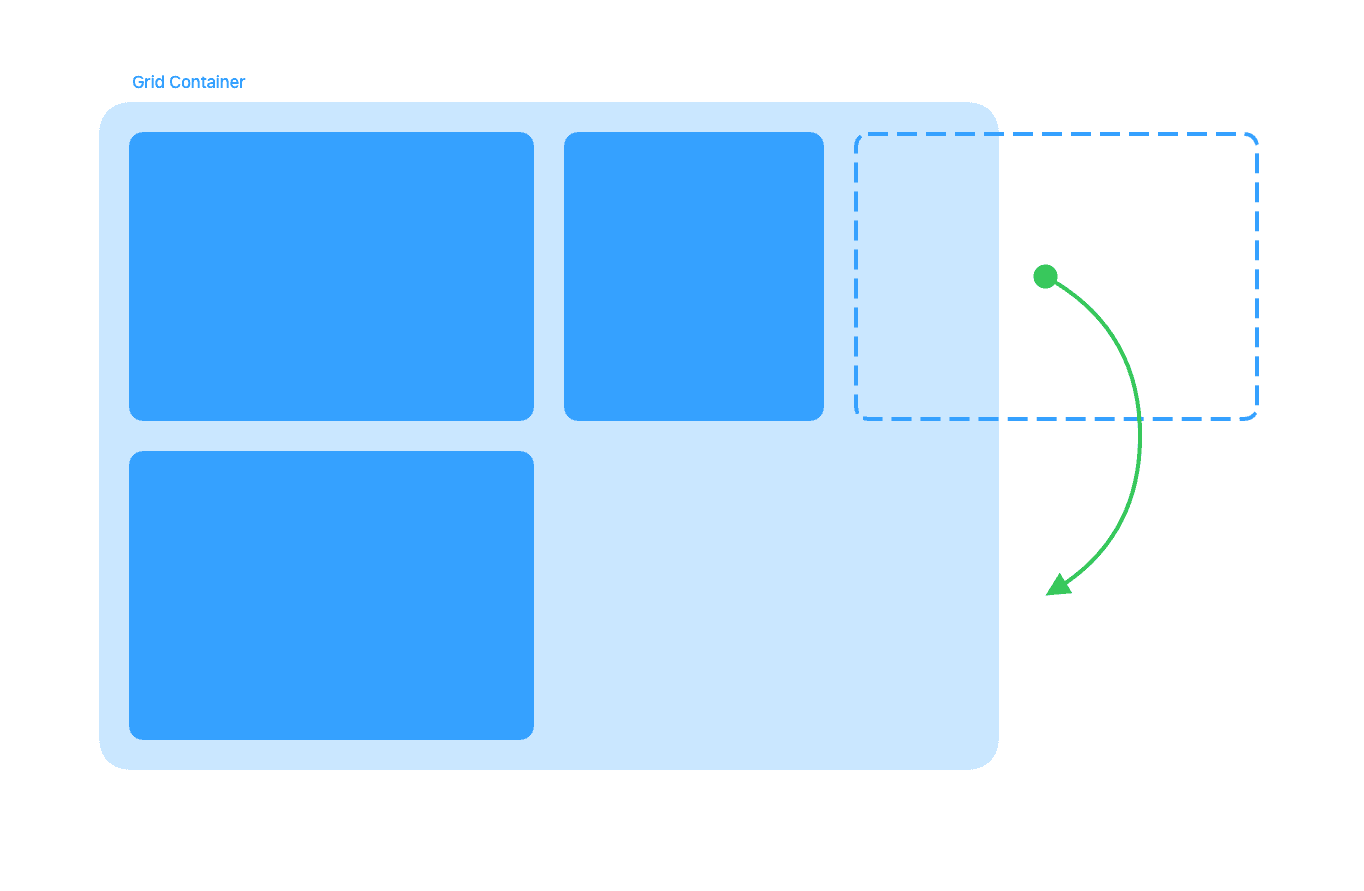
Cards within a container are laid out from left to right and will wrap to the next row when there is no more horizontal space available to fit the next card.
Card sizes
Each card inside the grid can specify its maximum width using the maxWidth
property.
<CardGrid rowHeight={438}>
  <CardGrid.StackedCard
    maxWidth="half"
    ...
  />
  <CardGrid.StackedCard
    maxWidth="full"
    ...
  />
</CardGrid>
The available width options for maxWidth are:
thirdhalftwoThirdsfull
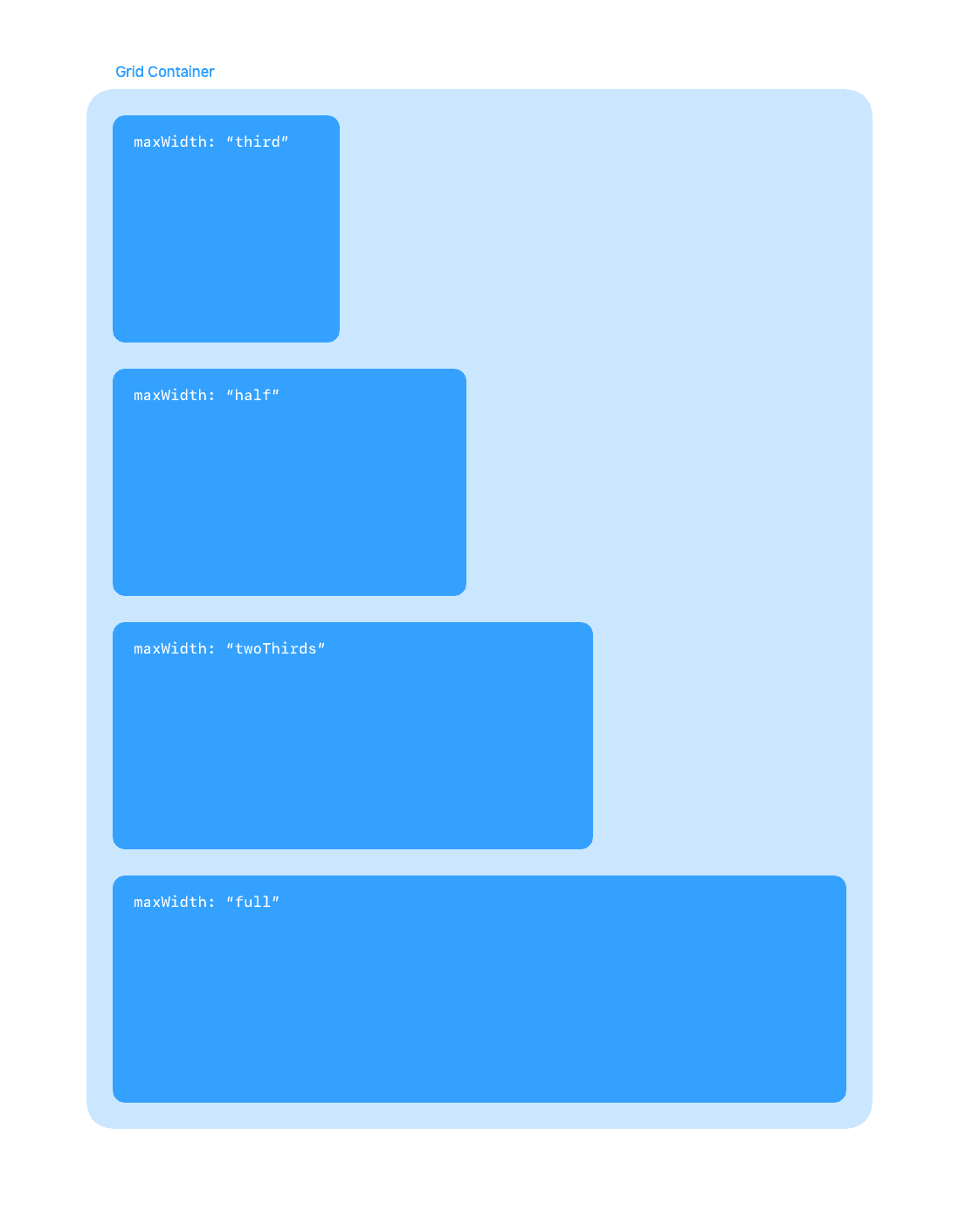
The property explicitly defines the maximum width of a card rather than the exact width because the grid layout is responsive. On mobile, the grid will collapse into a single column and all cards will have the same width.
Card types
AppView has three types of cards that you can mix and match within a single grid. All card types support all four size options defined above and change their layout depending on the available width.
Stacked Card
This card type shows a title and description next to a media element (image or video).
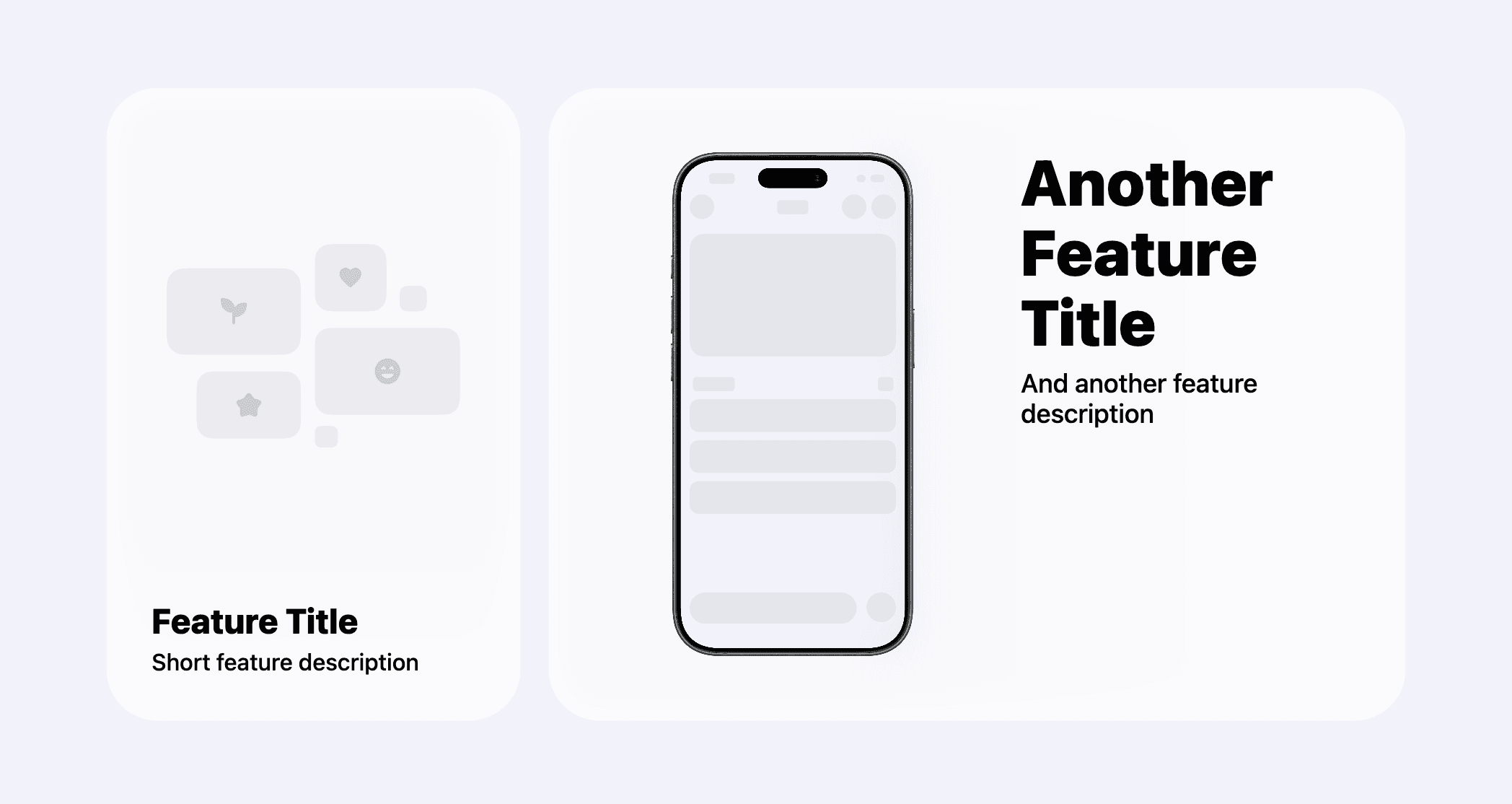
Depending on the width of the card, text and media will be stacked vertically or horizontally.
Check the reference for the stacked card and its media components to learn how to best use them and all available customization options:
Overlaid Card
This card type overlays title and description on top of an image.
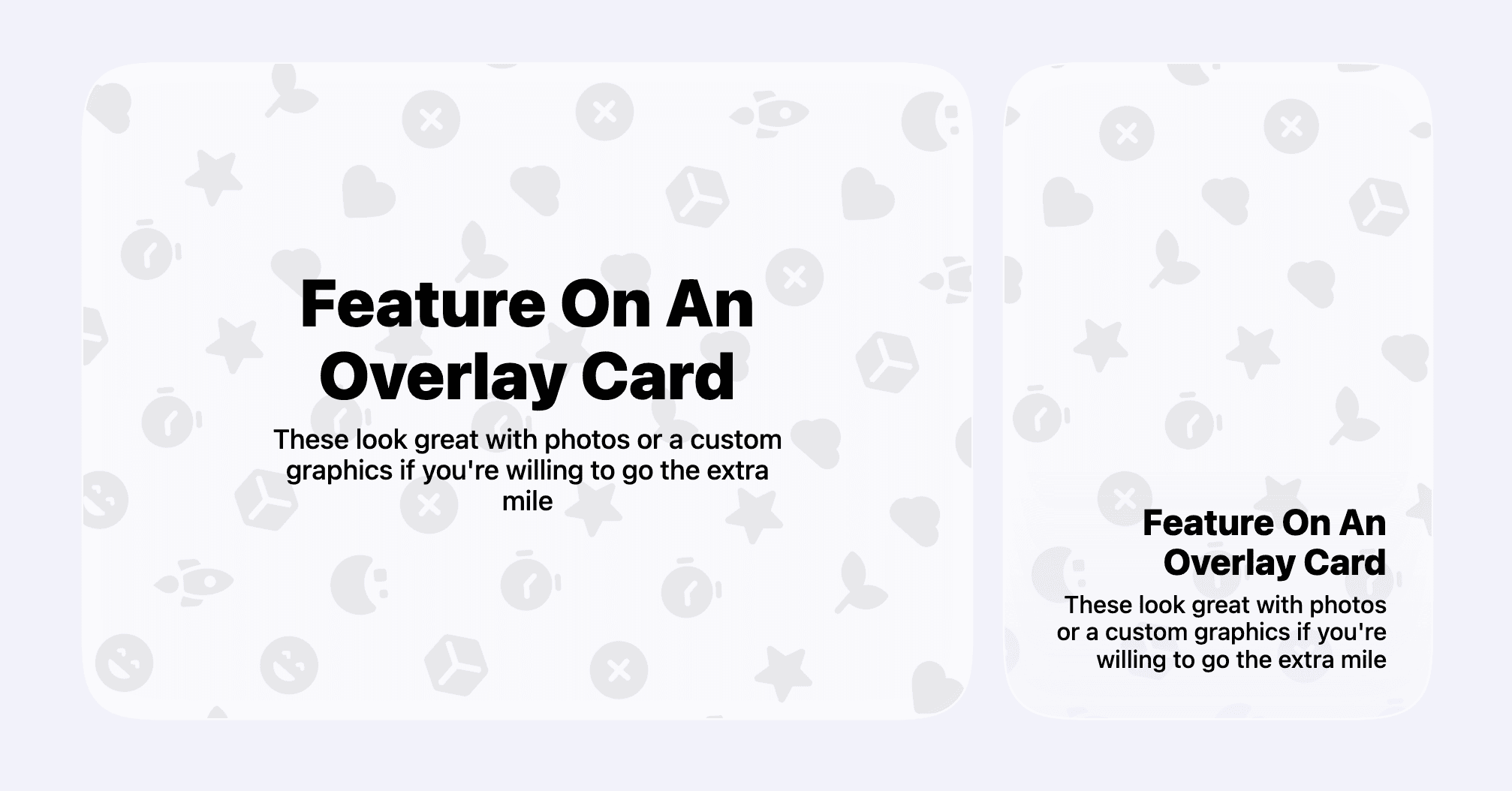
Depending on the width of the card, text size and visible portion of the background image will adjust.
Check its reference for all available options:
Icon Card
This card type shows an icon above the title and description.
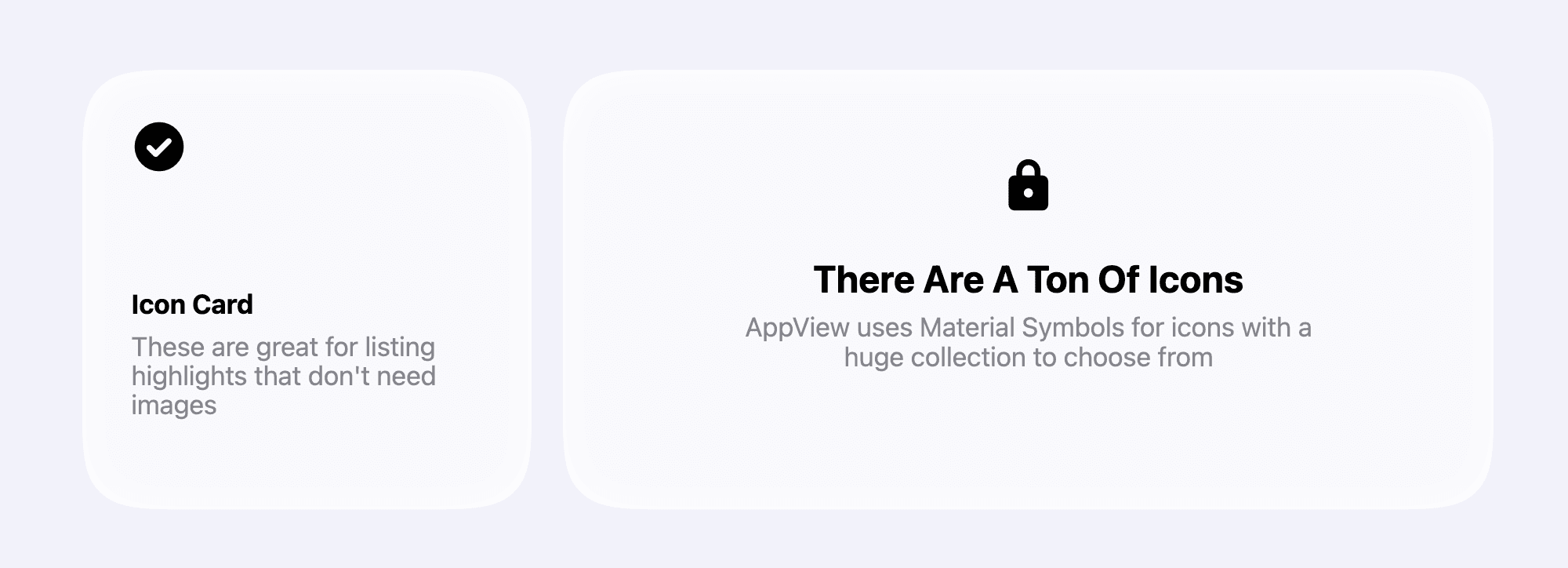
Depending on the width of the card, size and alignment of the icon and text will adjust.
Check its reference for all available options: