AppView has 15 color themes to choose from to match your app’s branding, but you can tweak the colors however you like. This guide walks you through both using built-in themes and customizing them.
Dark and/or light mode
All built-in color themes support dark and light modes, and by default your website will automatically match the user’s current system appearance.
You can, however, force your website to always use either dark or light mode.
This is controlled by the THEME constant inside the src/constants.ts file.
export const THEME: "system" | "light" | "dark" = "system";Brand accent color
Inside the src/constants.ts file there is a COLORS constant that defines all
colors used throughout the website.
One important color you might want to change is the accent-brand.
export const COLORS = {
  LIGHT: {
    ...
    "accent-brand": "#000000",
    ...
  },
  DARK: {
    ...
    "accent-brand": "#FFFFFF",
    ...
  },
};
This color is used in multiple places to highlight some key elements of the site, like “Download” buttons. Each built-in color theme uses a different brand color to match the overall theme but you can change it to match the primary color you use for your app’s icon and throughout the UI.
Custom color themes
AppView’s theme system is intentionally designed to be simple and not use a lot of colors. If you’ve already designed a color palette for your app, it should be relatively straightforward to port it to AppView.
These are the main colors the majority of built-in components use:
"text-primary": "...",
"text-secondary": "...",
"fill-0": "...",
"fill-1": "...",
"fill-2": "...",
"fill-3": "...",
"accent-brand": "...",
Because of the simplicity of the theme and because all colors are inside a single file, AI tools, in my experiments, do a decent job generating a color palette based around a primary brand color or from a screenshot of your app.
Built-in color themes
Once you pick the theme you like, copy its code and replace the whole COLORS
constant inside the src/constants.ts file, then refresh your website’s page in
the browser.
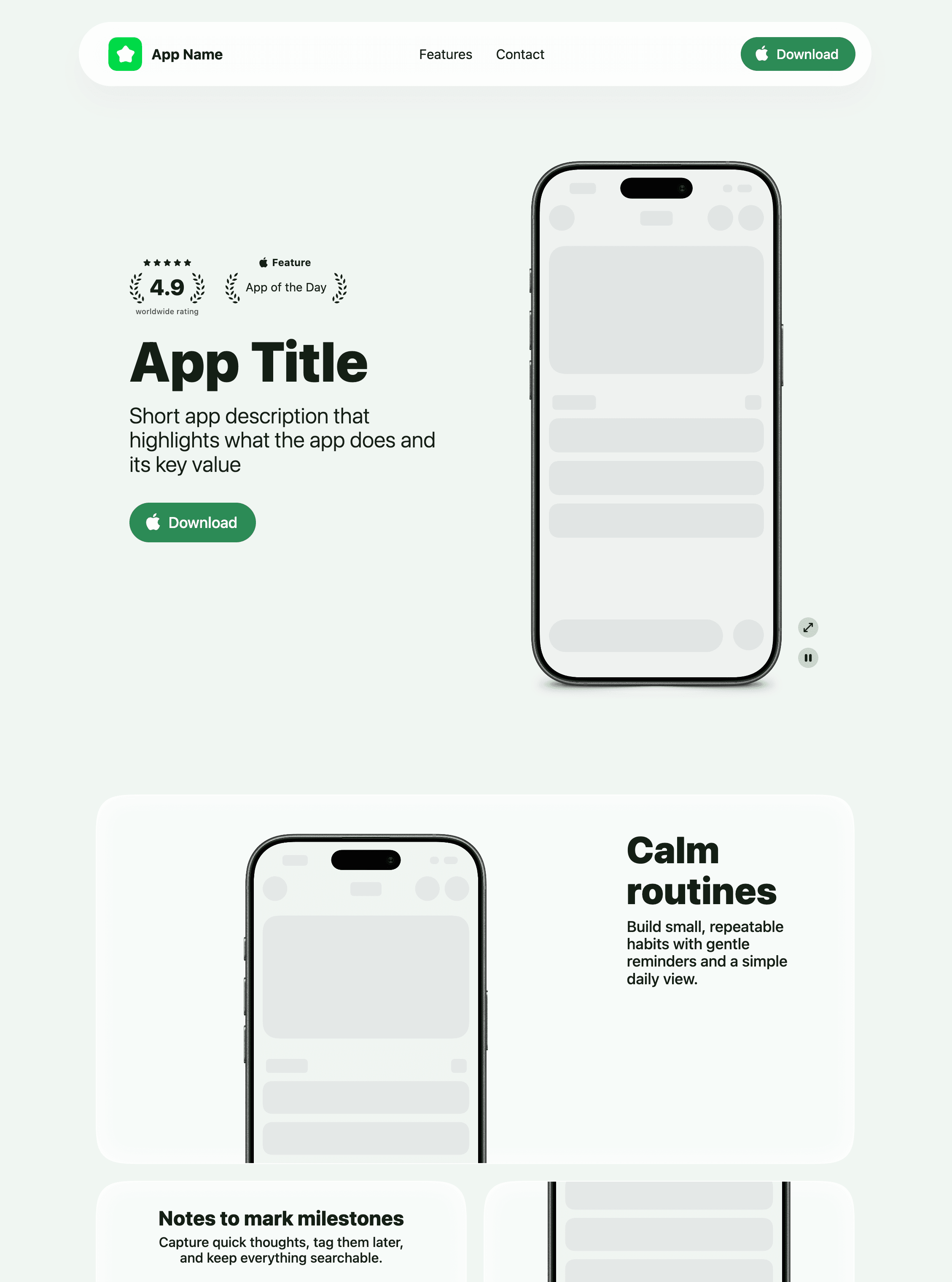
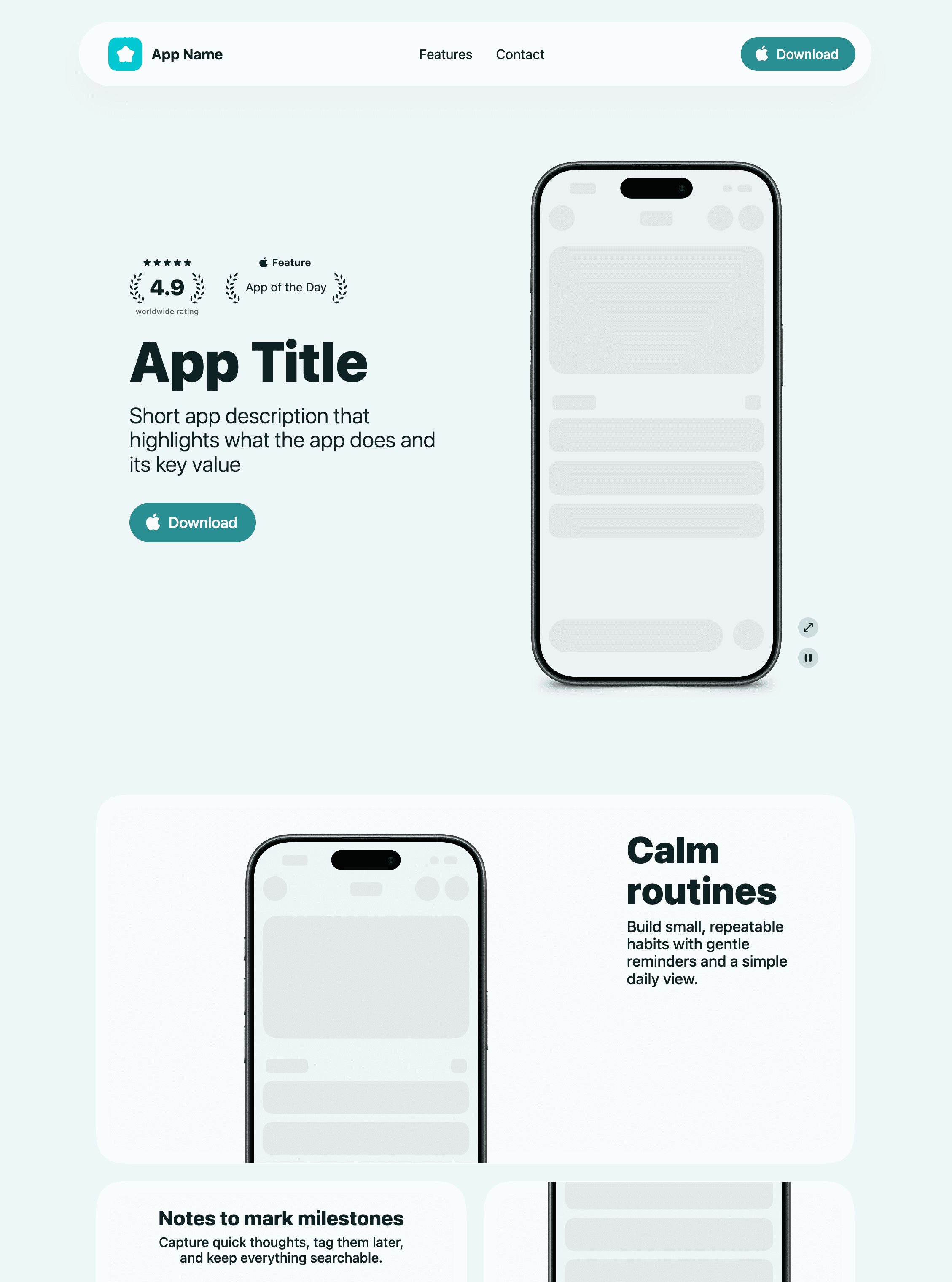
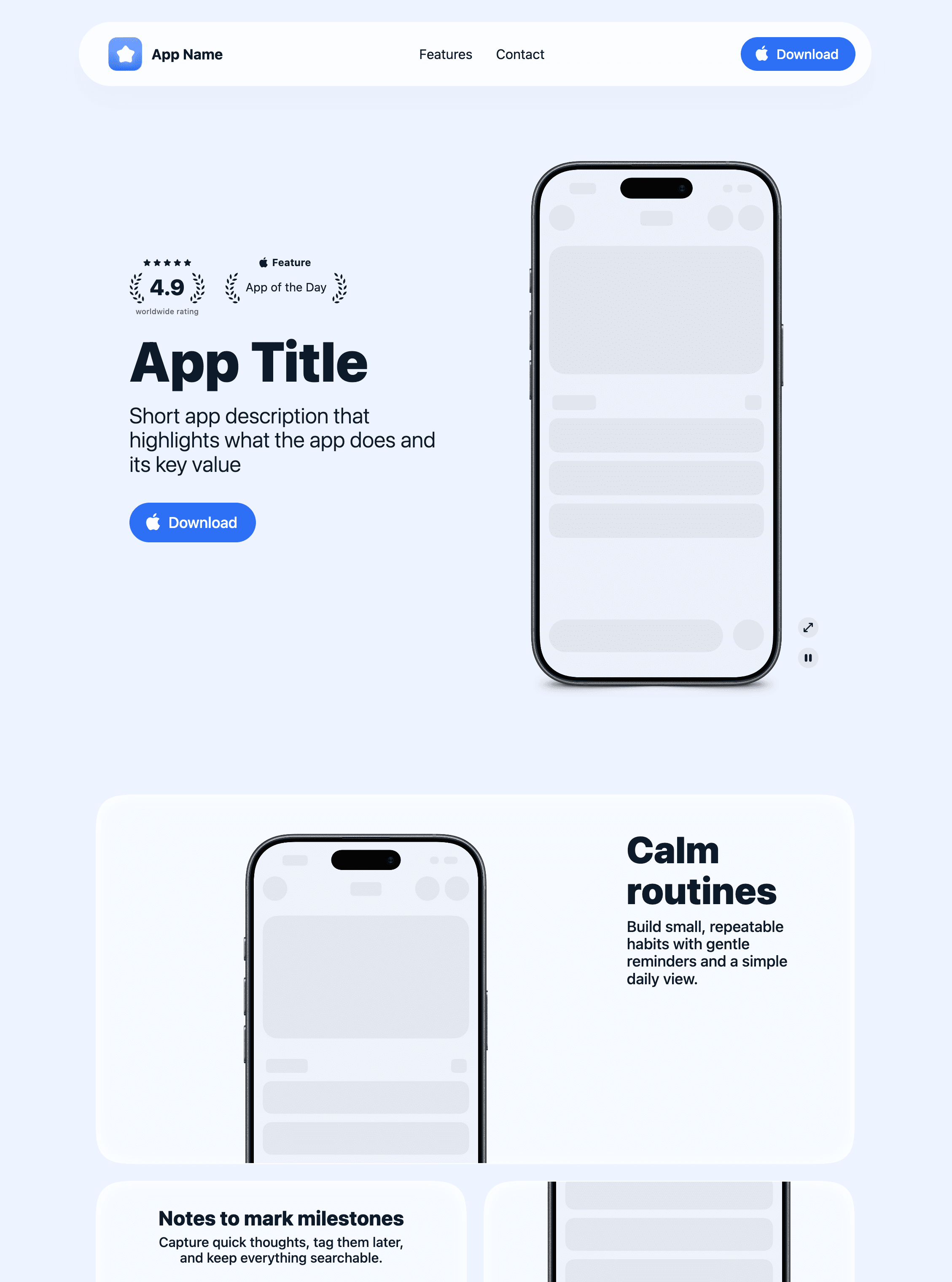
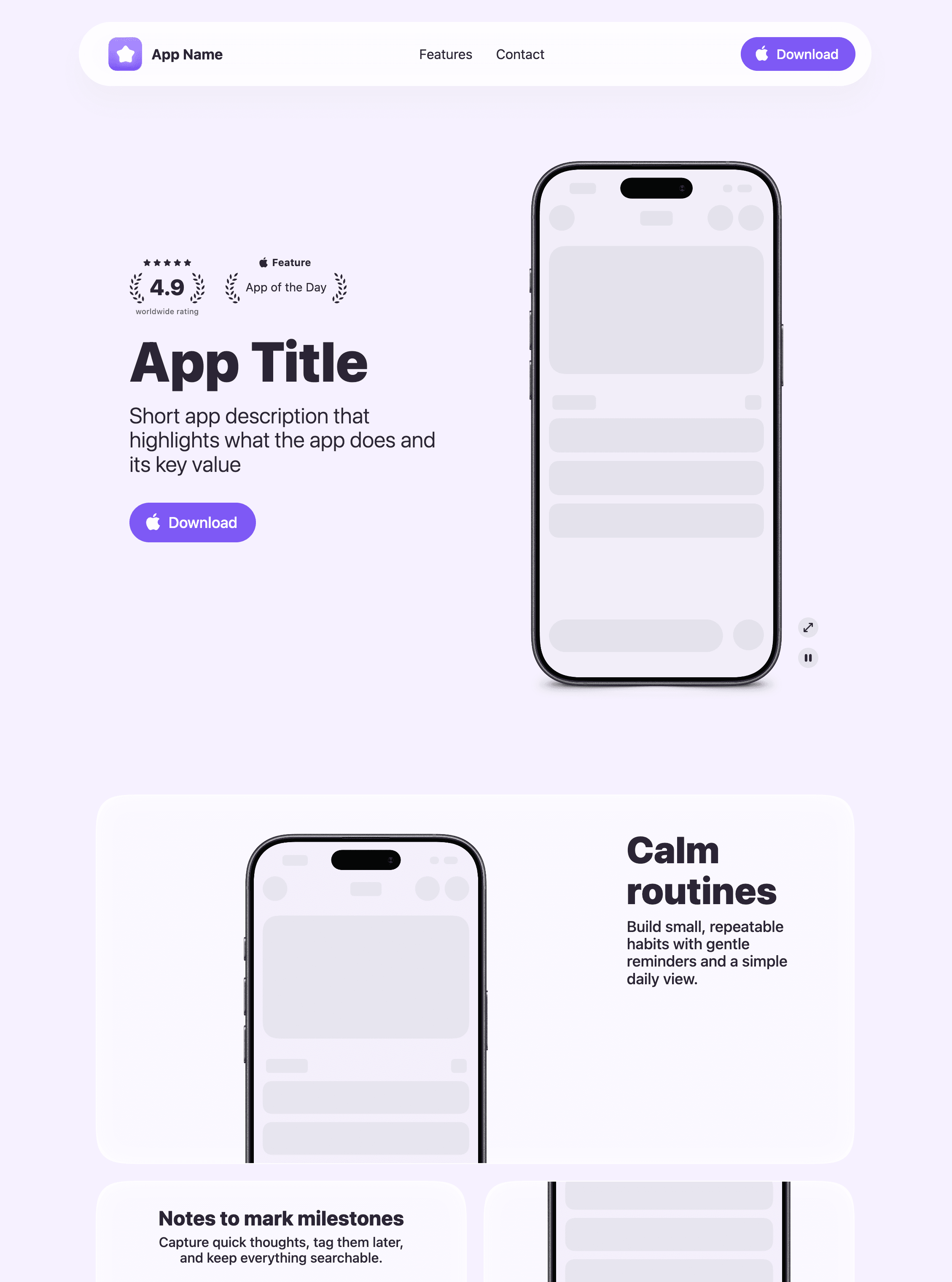
Previews
Neutral
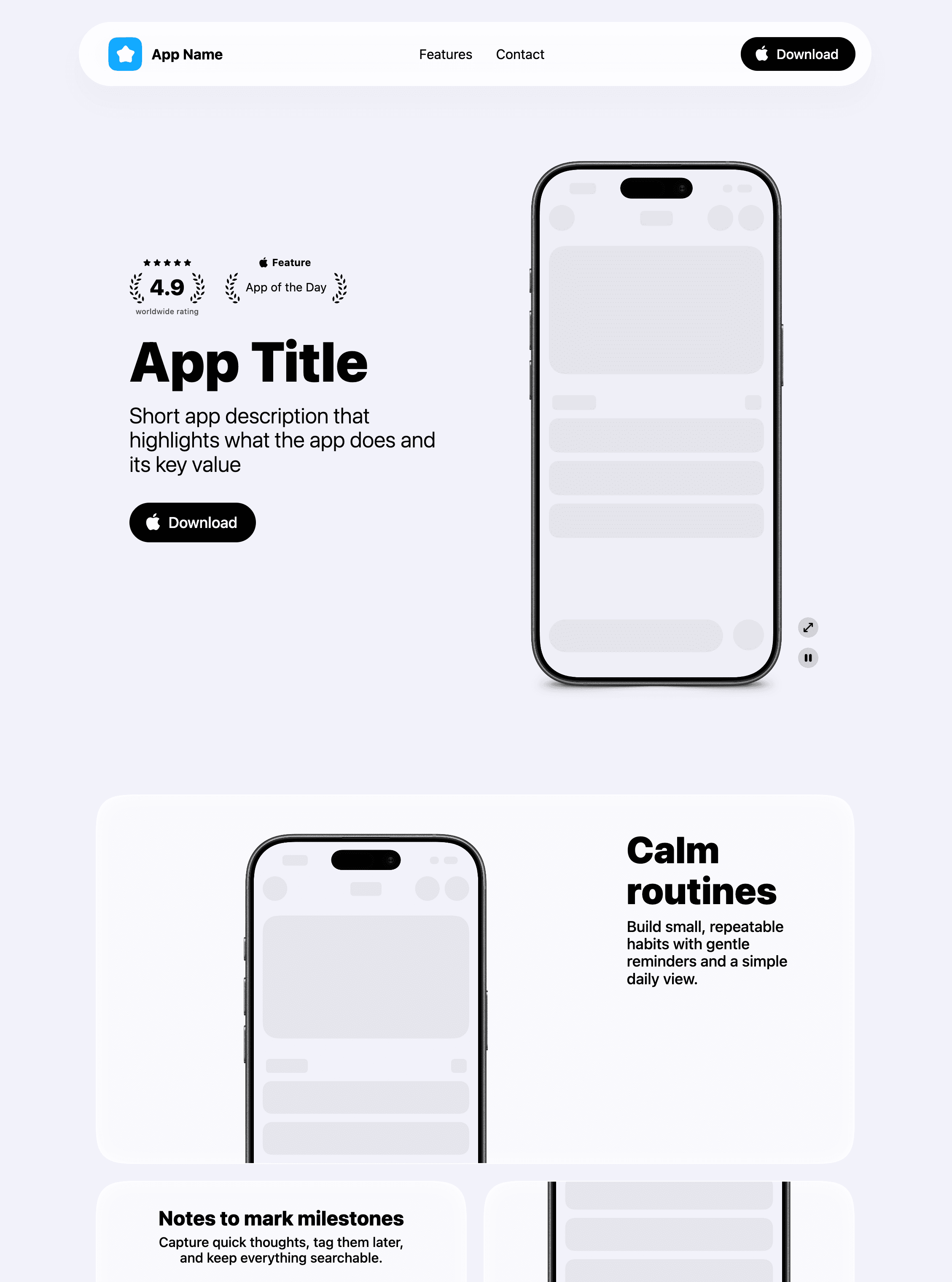
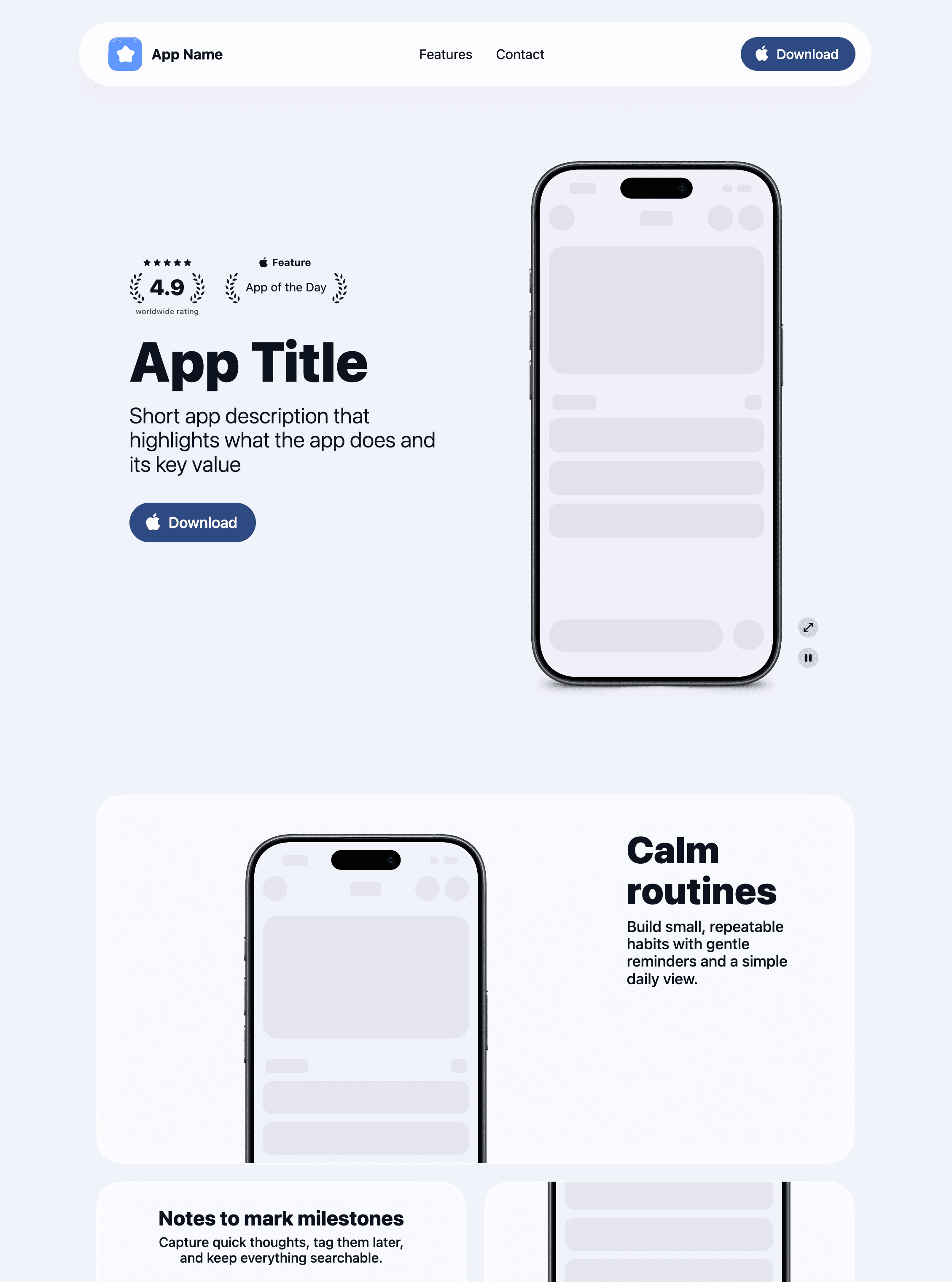
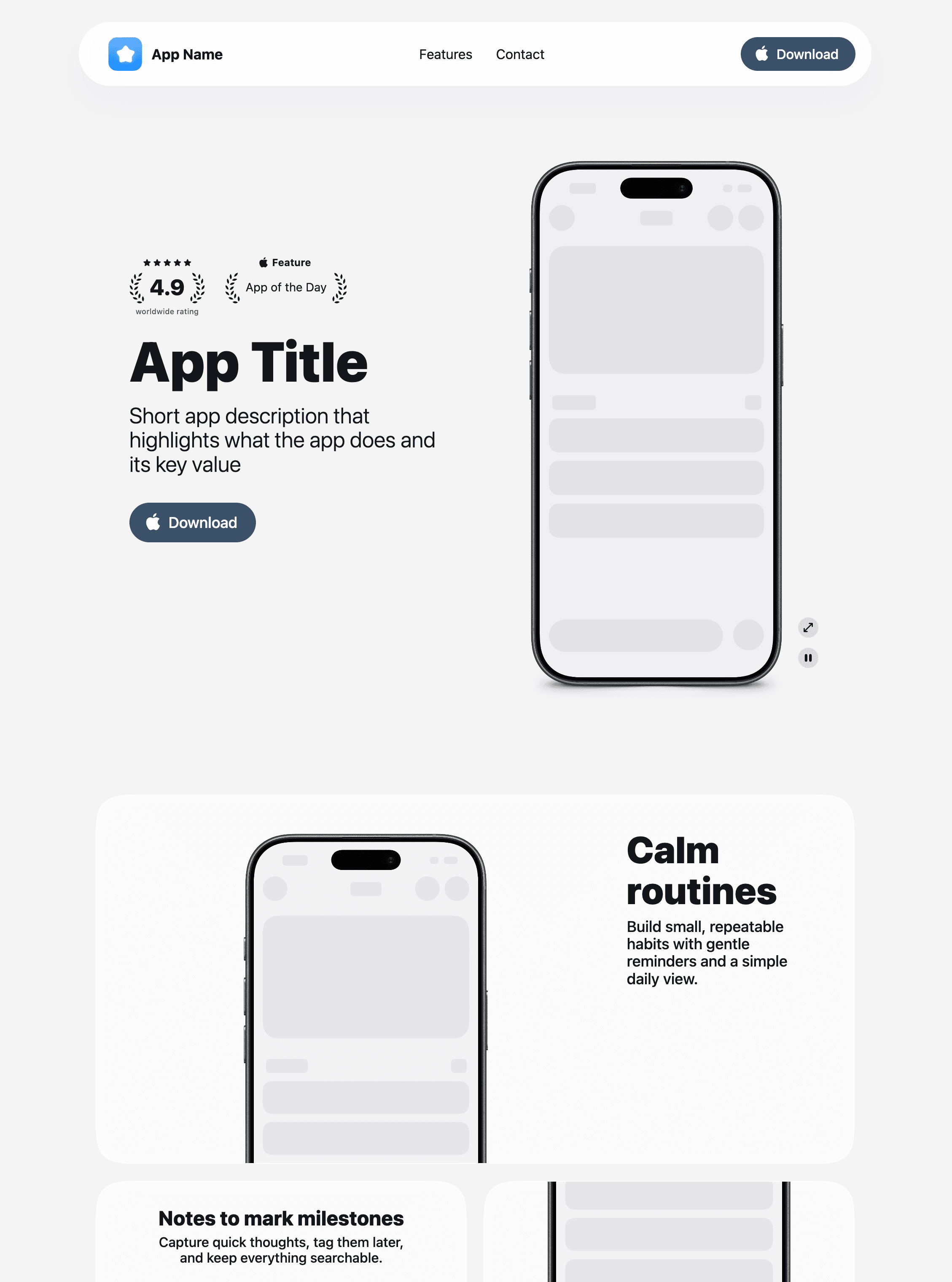
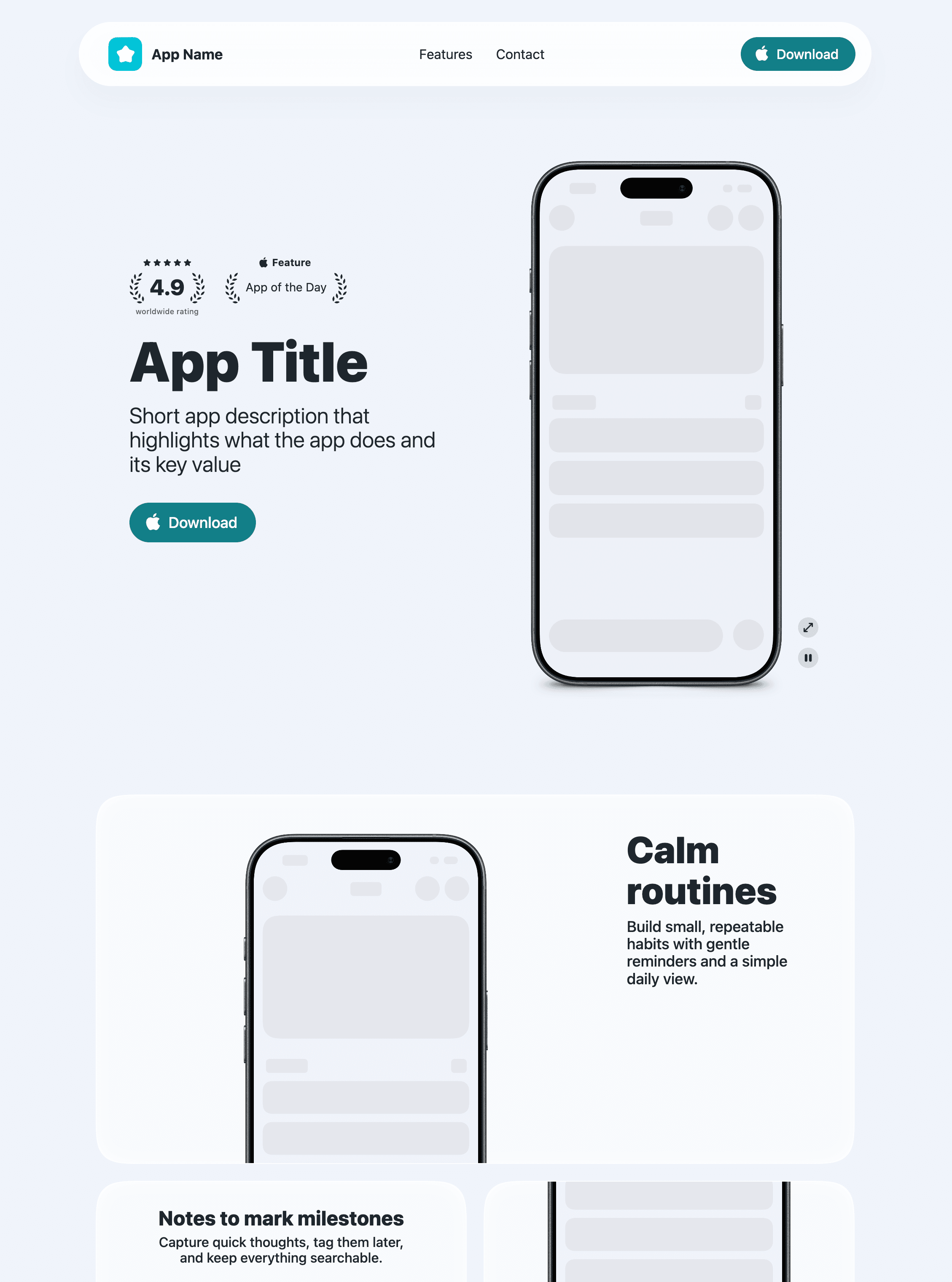
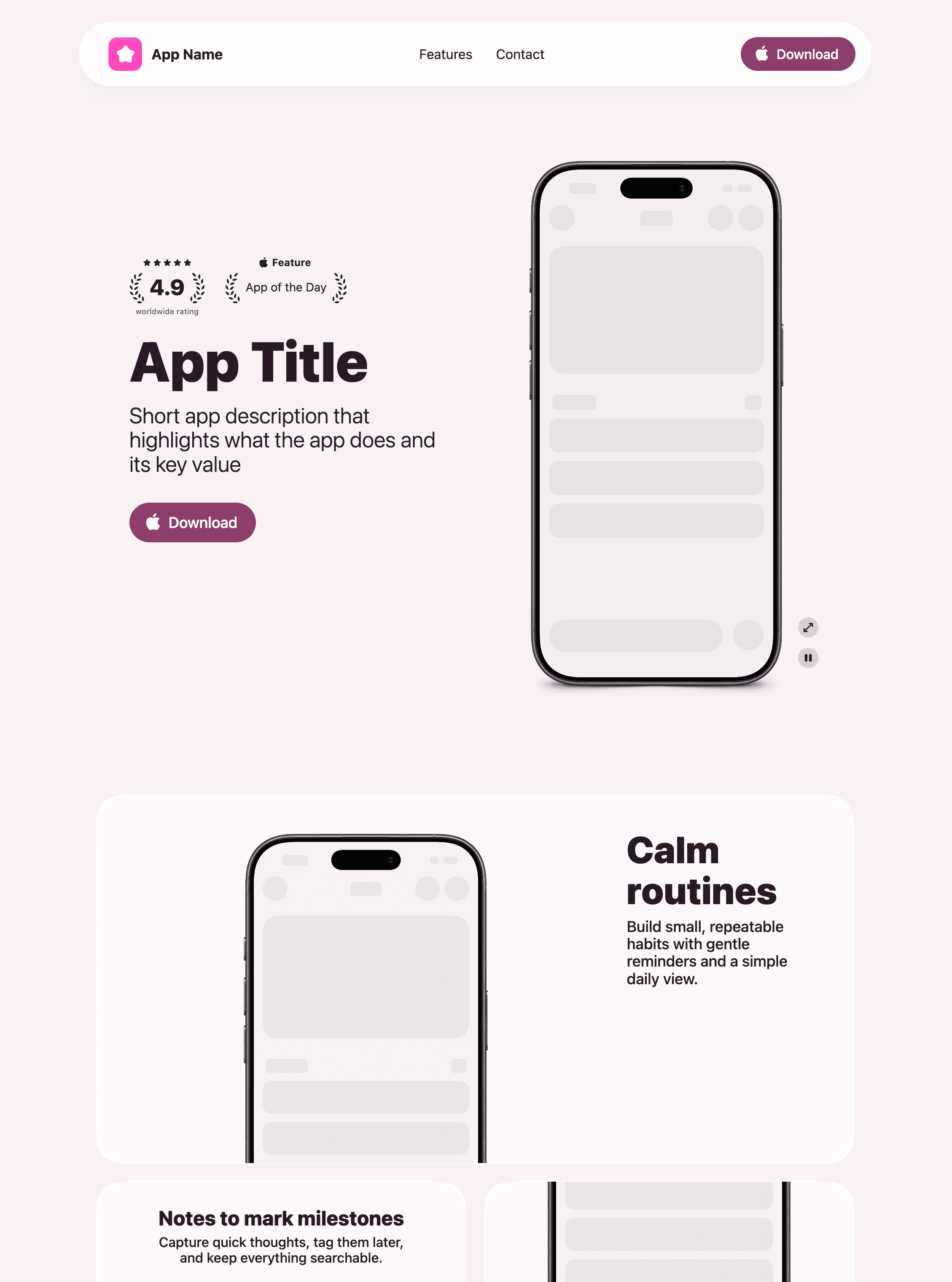
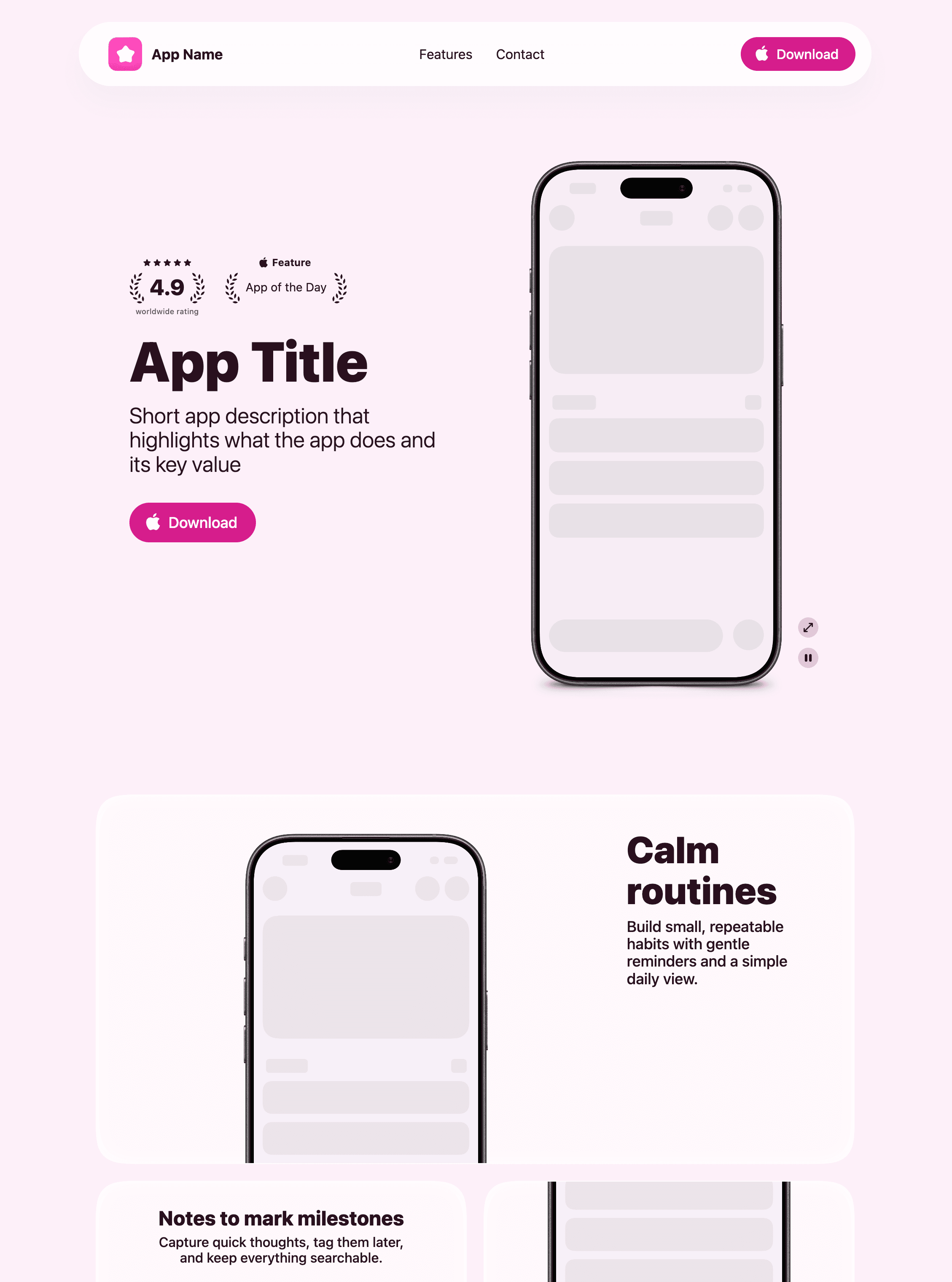
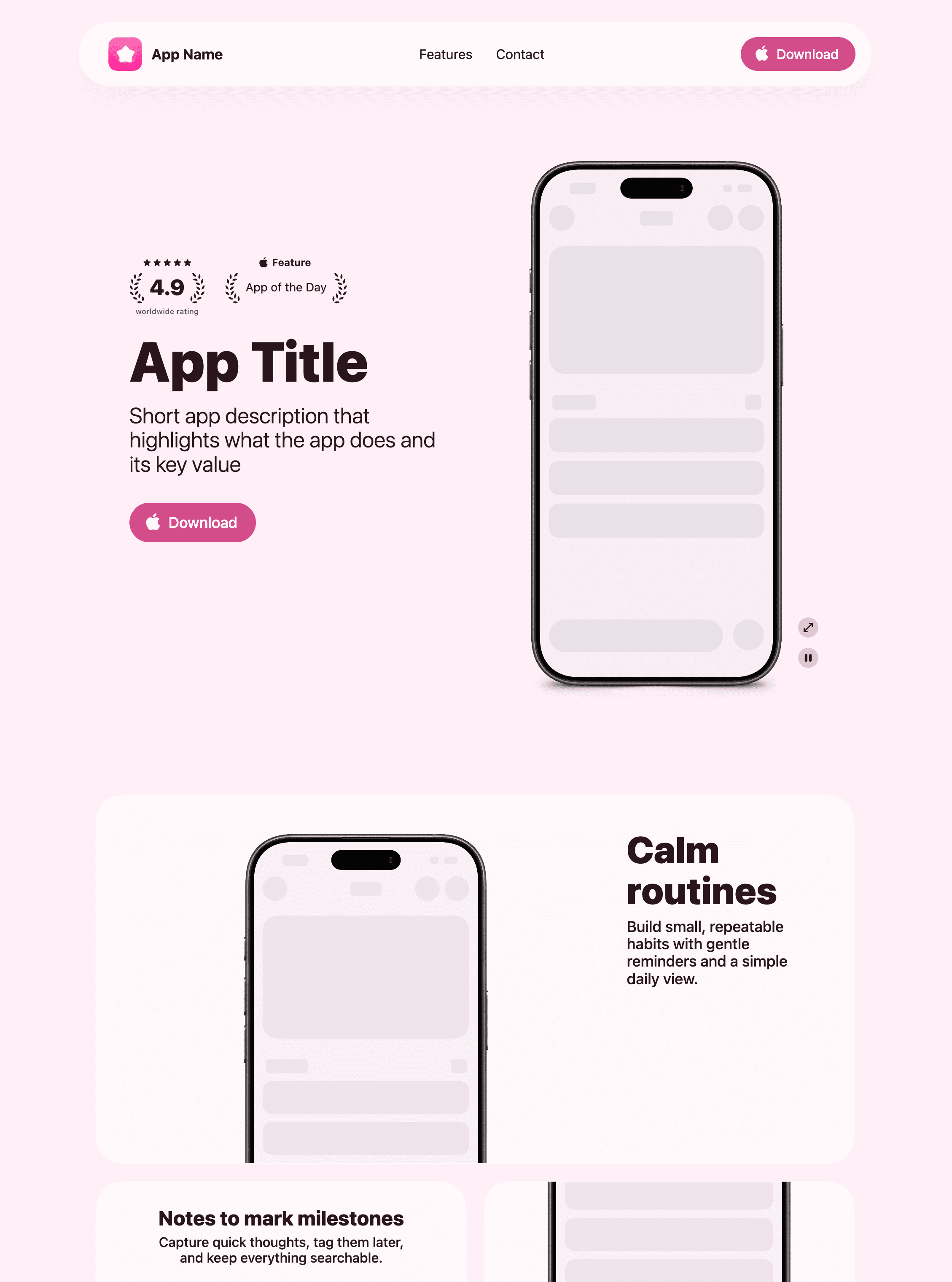
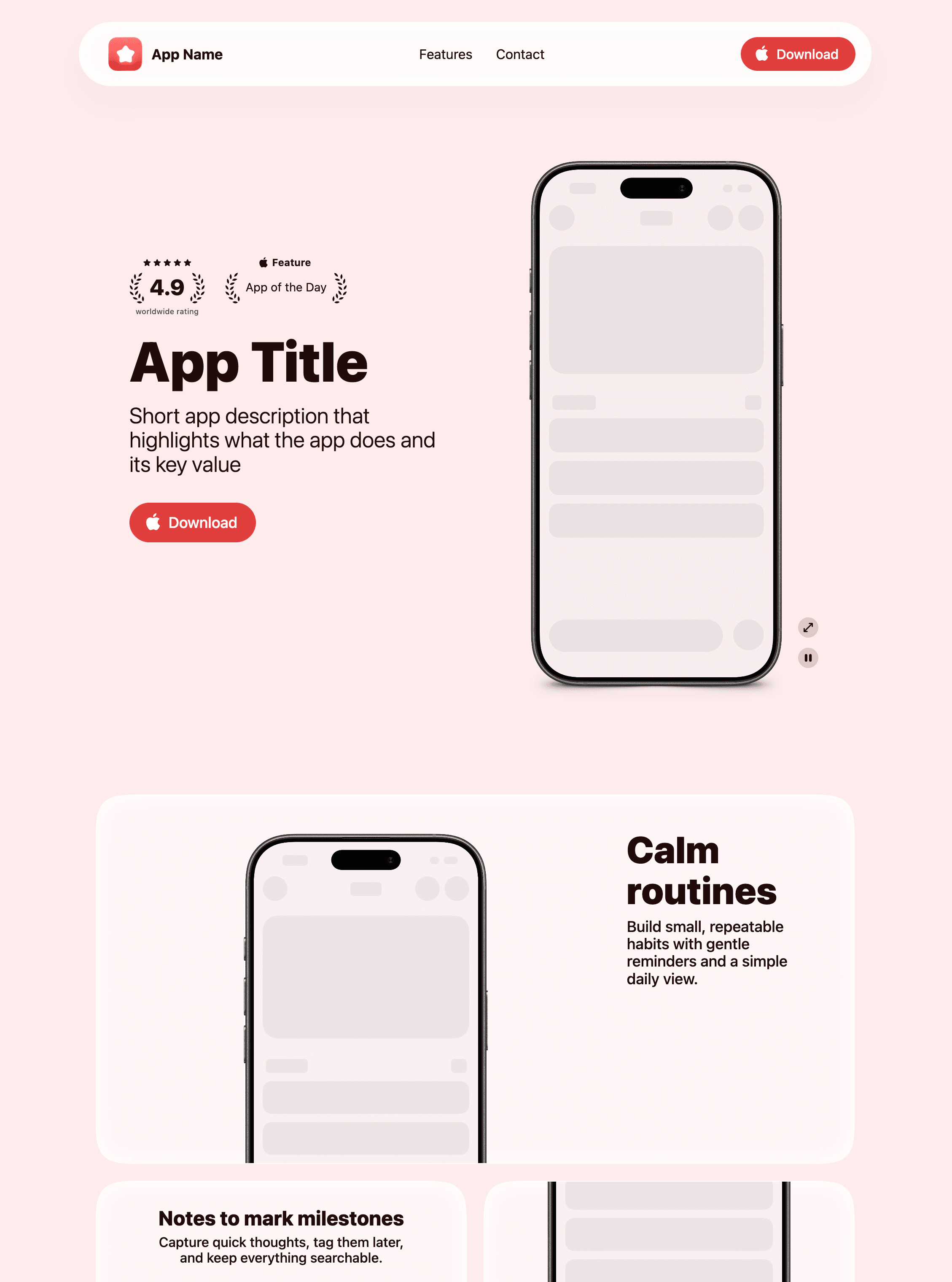
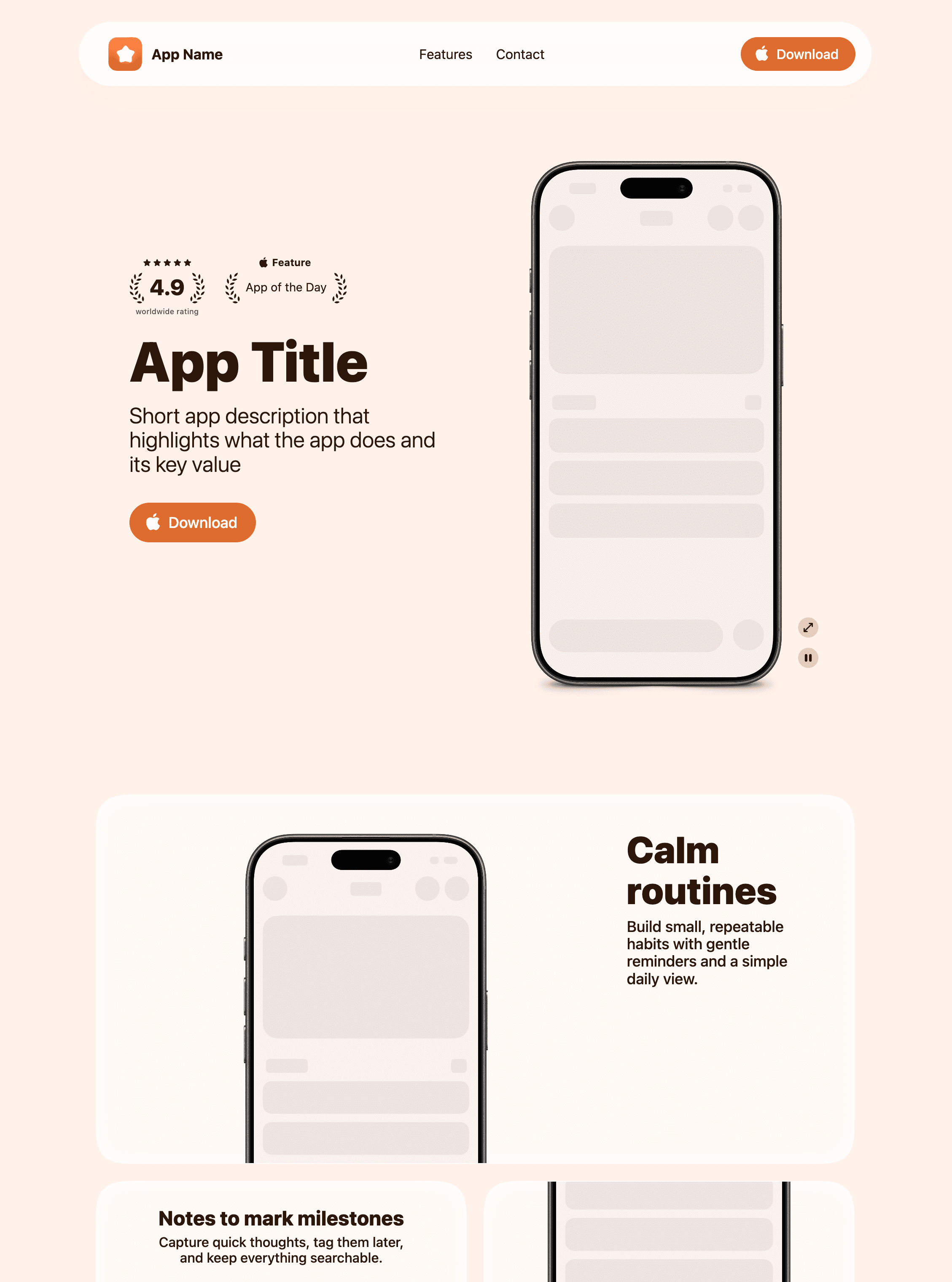
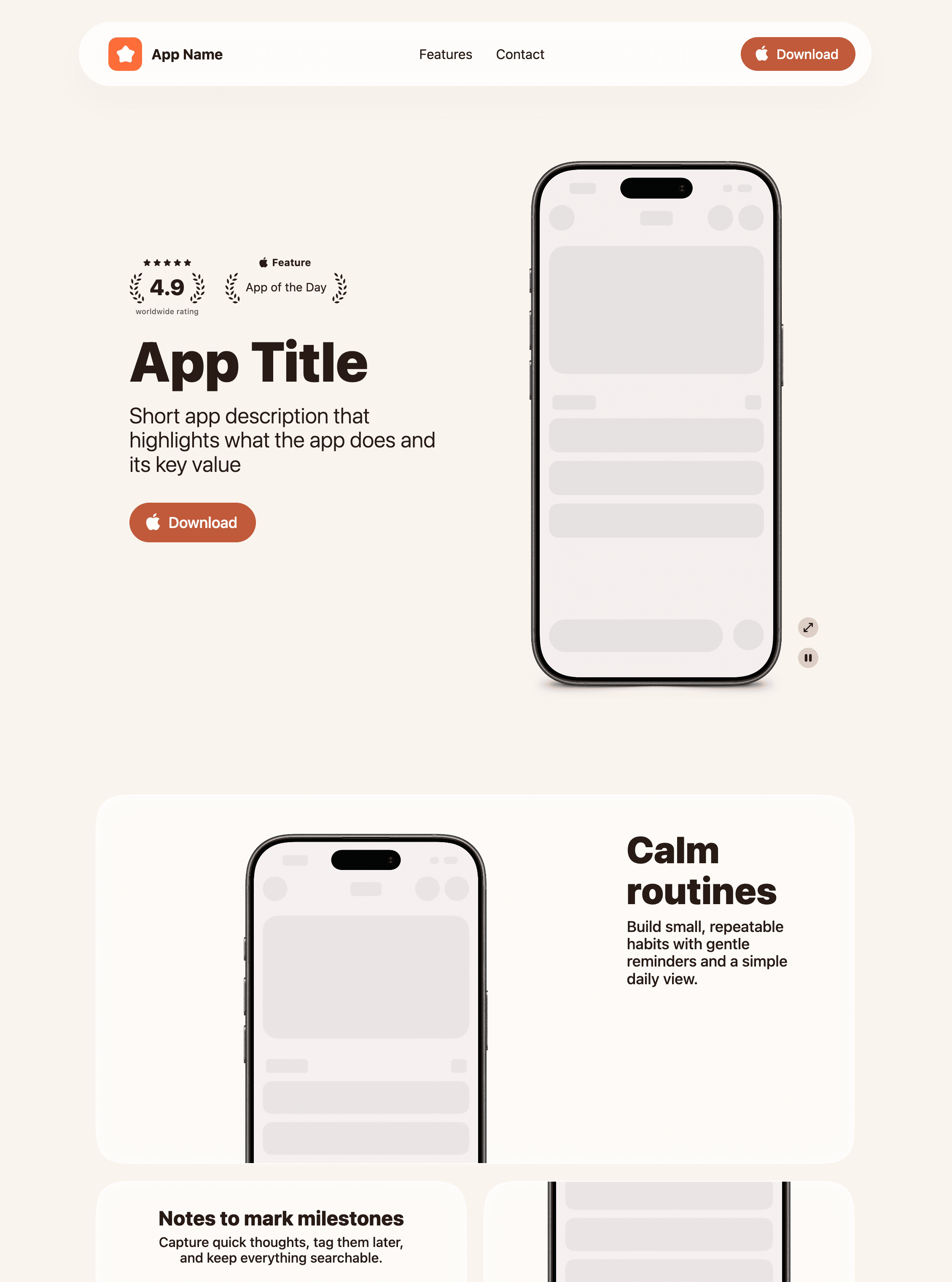
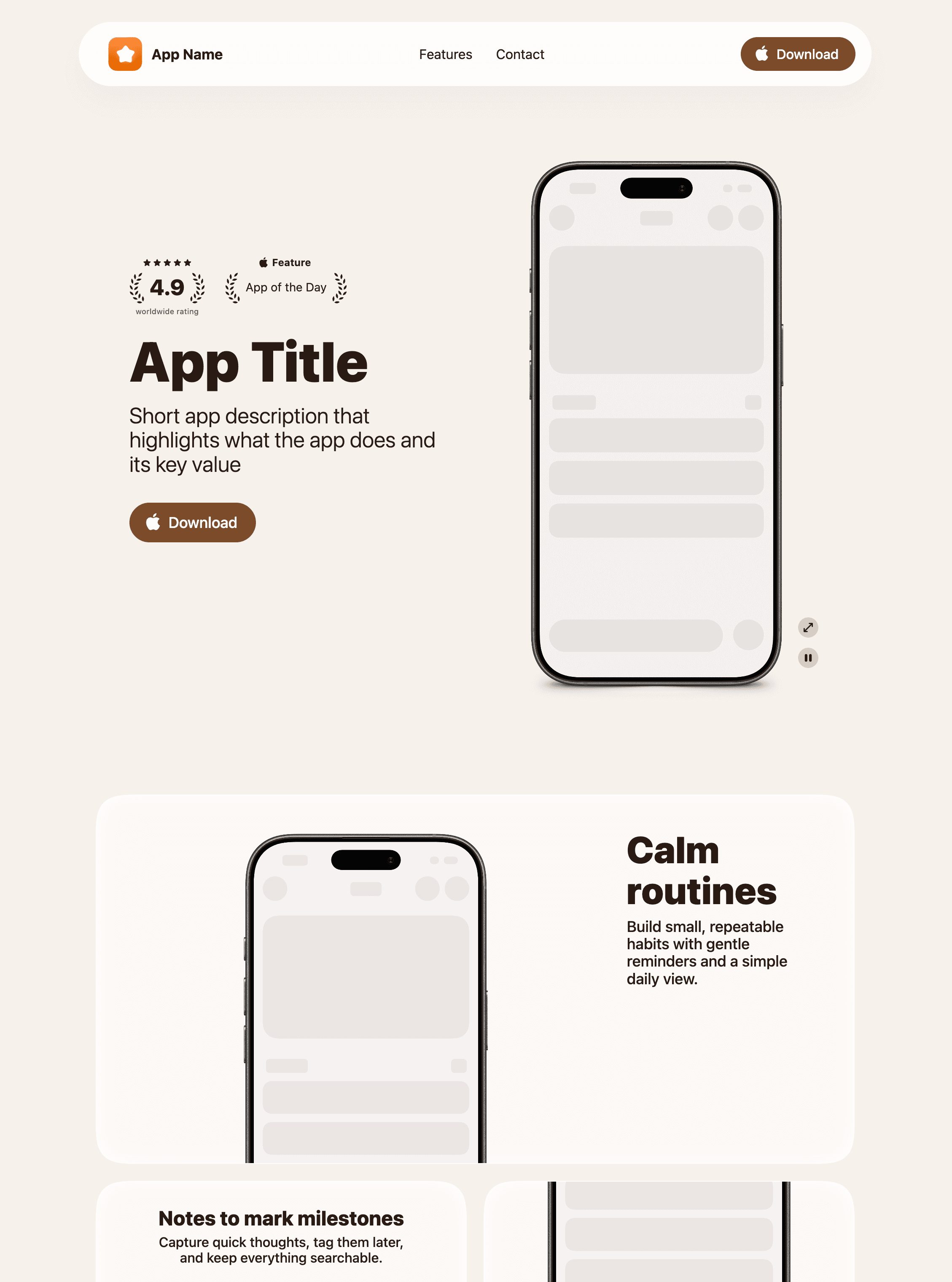
Code
Neutral
// Neutral
export const COLORS: ColorScheme = {
  LIGHT: {
    "text-primary": "#000000",
    "text-secondary": "rgba(60, 60, 67, 0.60)",
    "fill-0": "#FFFFFF",
    "fill-1": "#F2F2F7",
    "fill-2": "#E5E5EA",
    "fill-3": "#D1D1D6",
    "accent-brand": "#000000",
    "accent-orange": "#FF8D28",
    "accent-green": "#34C759",
    "accent-red": "#FF3B30",
    "accent-blue": "#007AFF",
    "accent-indigo": "#5856D6",
    "accent-mint": "#00C7BE",
    "accent-purple": "#AF52DE",
    "accent-pink": "#FF2D55",
  },
  DARK: {
    "text-primary": "#FFFFFF",
    "text-secondary": "rgba(235, 235, 245, 0.60)",
    "fill-0": "#000000",
    "fill-1": "#121214",
    "fill-2": "#272729",
    "fill-3": "#3A3A3C",
    "accent-brand": "#FFFFFF",
    "accent-orange": "#FF9230",
    "accent-green": "#30D158",
    "accent-red": "#FF453A",
    "accent-blue": "#0A84FF",
    "accent-indigo": "#5E5CE6",
    "accent-mint": "#63E6E2",
    "accent-purple": "#BF5AF2",
    "accent-pink": "#FF375F",
  }
}