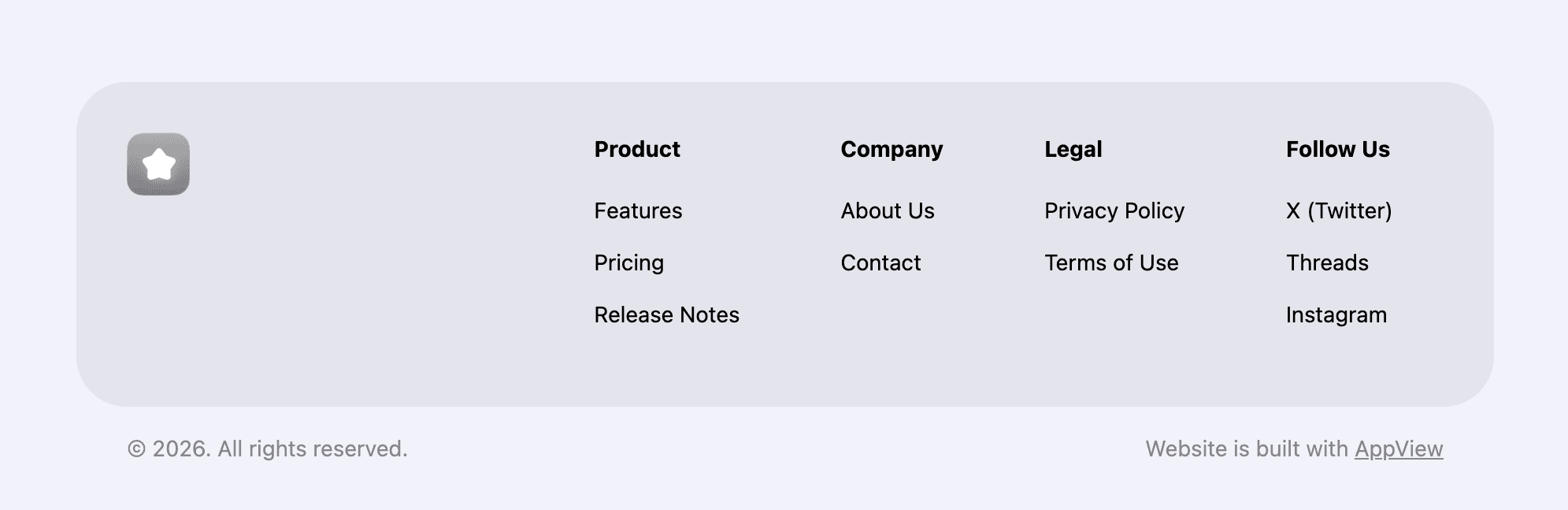
AppView supports two types of footers: compact and multi-column. You can choose one or the other depending on the number of links you need to include.
Compact Footer
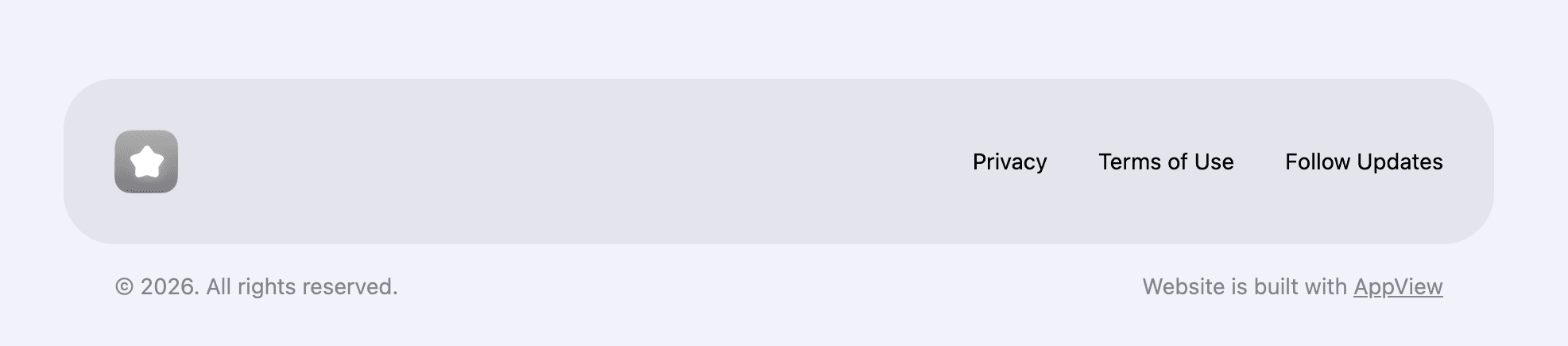
In this tutorial, you’ll set up the compact footer which is defined inside the
app/(main)/layout.tsx file.
<CompactFooter
  appIcon={<AppIcon src="/app_icon.png" filter="grayscale" />}
  links={[
    { label: "Privacy", href: "/privacy" },
    {
      label: "Terms of Use",
      href: "https://www.apple.com/legal/internet-services/itunes/dev/stdeula/",
    },
    { label: "Follow Updates", href: "https://your-social-media.com" },
  ]}
  footnoteLeading={`© ${new Date().getFullYear()}. All rights reserved.`}
  footnoteTrailing={
    <>
      Website is built with <a href="https://appview.dev">AppView</a>
    </>
  }
/>
Check reference on both components to see all available properties:
App icon
The footer displays your app icon that you configure the same way you did for the Navigation bar in the previous step.
By default, the footer uses a grayscale filter on the icon to make it stand out
less and not steal attention from the main content, but feel free to disable it
by removing the filter="grayscale" property from the <AppIcon> component.
<CompactFooter
  appIcon={
    <AppIcon
      src="/app_icon.png"
      filter="grayscale"
    />
  }
  ...
/>
Links
The usual practice for a footer is to include links to a Privacy Policy, Terms of Use, and a link to your social media or newsletter subscription page.
Modify the links with the links you’d like to include. Just as with
navigation bar links, you
can include anchors to sections on the page, mailto: links, internal or
external URLs.
Also, make sure to check the Privacy and terms guide once you need those pages.