AppView uses Material Symbols for all its icons.
In order to keep the website size small and improve loading speed, only a
limited set of icons are downloaded and included in the final website build.
These icons are defined in the MATERIAL_SYMBOLS list inside the
src/constants.ts file.
export const MATERIAL_SYMBOLS = [...];A short side-note. The irony isn’t lost on me that we’re using Material Symbols from Google for an iOS app website. We don’t have SF Symbols for web unfortunately. I’ve tried dozens of icon libraries to pick the best one to use in AppView, nothing comes close to Material Symbols in terms of variety, quality and ease of use.
Adding icons
These are the steps to add a new icon to use on your website, most commonly
inside the <CardGrid.IconCard> components.
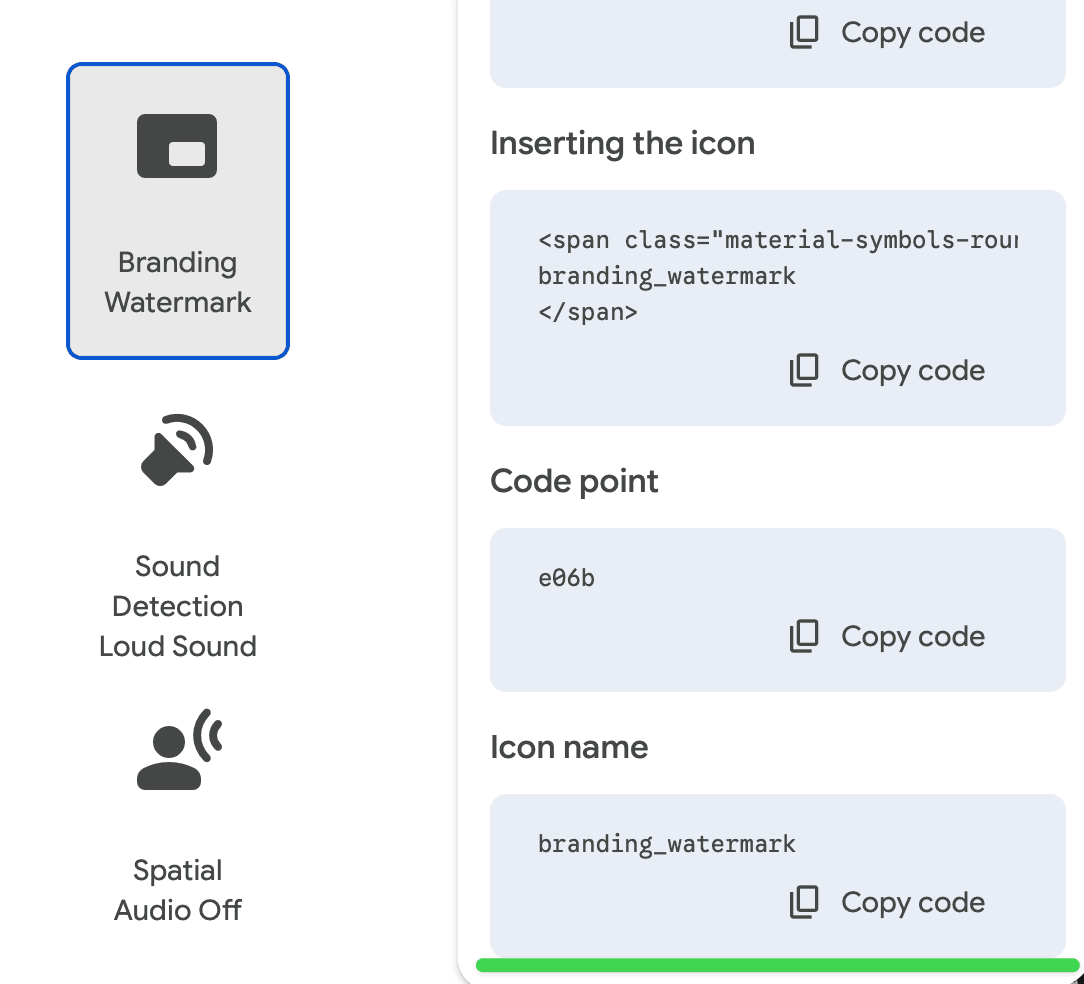
Copy icon name
Open Material Symbols library , use search to find the icon you want to add, and copy its name from the sidebar:
Add icon name to the list
Open src/constants.ts file and add the icon name to the MATERIAL_SYMBOLS
list:
export const MATERIAL_SYMBOLS = [
  ...,
  "branding_watermark",
] as const;
Use the icon
Now you can use the icon in any component that takes iconName or <Icon> as a
property, like <CardGrid.IconCard>:
<CardGrid.IconCard
  iconName="branding_watermark"
  ...
/>
Make sure to also check the <Icon> component reference to see all available properties.