Using bento grids is a great, visual way to showcase your app. Apple themselves use this style of presentation throughout their website and keynotes.
AppView comes with a set of components to help you make these types of grids.
You can build a custom layout or use
one of the grid templates provided in the
<CardGrid> component reference.
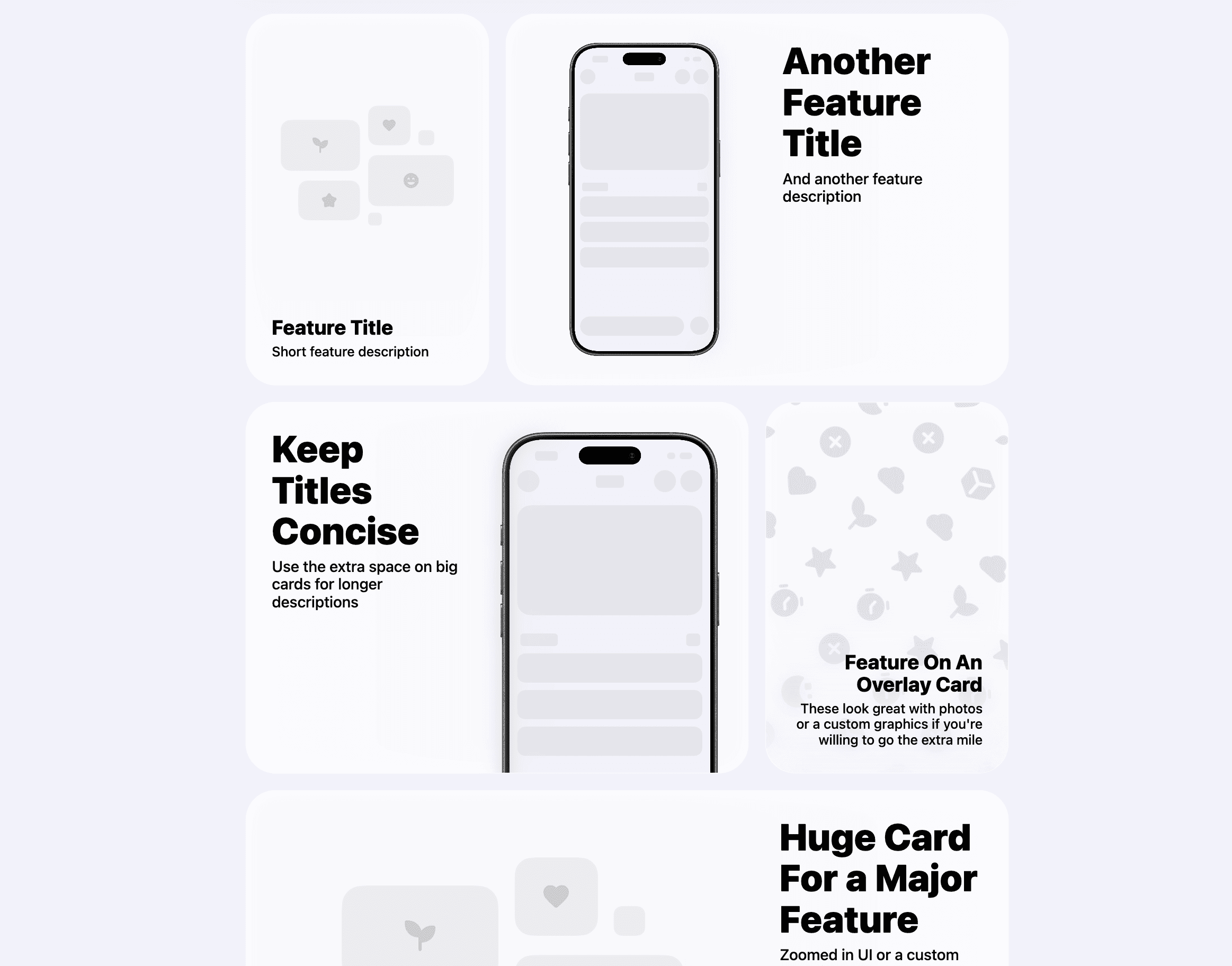
Choosing a grid template
Out of the box AppView uses the Template 5 for the features grid. This template uses multiple types of cards and a more advanced layout which gives a nice visual variety but needs more time to prepare the assets to fill the cards with content.
For the sake of this tutorial we’ll switch to a simpler Template 1 that needs just a few screenshots of your app and text content.
Once you need to use more advanced layouts, check the Custom card grid layouts guide.
Copy the code of Template 1
On the CardGrid component reference, switch to the Code tab for the Template 1 and copy the code.
Replace the default grid
Open the app/(main)/page.tsx file, find the <CardGrid> component nested
within a <Section>:
<Section navigationAnchor="features">
  <CardGrid rowHeight={438}>...</CardGrid>
</Section>
And replace the entire <CardGrid> component with the code you just copied.
Customizing the grid
Plan the layout
Think of a few key features of your app that you’d like to highlight on the homepage. For each feature, you’ll need a title, a short description, and a screenshot or screen recording.
See in which order it makes the most sense to present these features to the user and pick which card on the grid will hold which feature.
Prepare assets
Take all screenshots and screen recordings on a Simulator or a device and put
them inside the public/ folder.
Customize cards
Each card within the <CardGrid> component has title, description, and
media properties.
<CardGrid.StackedCard
  title="Title"
  description="Description"
  media={
    <CardGrid.StackedCard.Image
      src="/screenshot.png"
      bezel="iPhone 17 Black"
      alt=""
    />
  }
/>
To use screen recordings instead of screenshots, replace
<CardGrid.StackedCard.Image> with <CardGrid.StackedCard.Video>.
Put your prepared content into the card’s properties for each card on the grid
and, just like with the <Hero> component, adjust the bezel property to match
the device you’ve used to take the screenshots or screen recordings.
See also references for <CardGrid.StackedCard> component to learn about other customization options like bezel cropping and using different media for light and dark modes.
Card components intentionally expose only high level properties so they can automatically adapt to different layouts, device screen sizes and color schemes. By the end you’ll end up with a nice looking grid of features that clearly communicate value of your app to the user.
Next, you’ll work on some additional social proof with testimonials.